Dedicated Reseller Email: reseller@openweb.co.za Priority Reseller Support: 0119668082
Reseller and Enduser Guide Reviewed 4 September 2026

Every reseller tool, explained exactly where you need it.

This is the current operating guide for Certified OpenWeb Resellers and their white-label endusers. It mirrors the live navigation, explains every major feature, and powers a searchable Helper Widget on every reseller and enduser page. Press Alt+H or the bottom-right Help button to open the exact guidance in a new tab. Admin-only workflows are intentionally excluded.

19current workflow chapters
63exact feature guides
16real production screenshots
Alt+Hhelp from every page
Scope: reseller and enduser tools only. Product availability, promotional offers, provider stock, pro-rata amounts, and payment fees can change; the live checkout is always authoritative.
Documentation command palette

Find the exact workflow without scrolling

Search all chapter text, route names, tools, products, and troubleshooting guidance.

CtrlK focus search / search Esc clear
Showing all 19 workflow chapters.
Role-specific learning paths

Show only what each reseller staff role needs

Chapter 1
Verified v2.2.12

Quick Start: Waitlist to First Active Service

The safest sequence for a new reseller is approval, policy acceptance, white-label setup, wallet funding, customer creation, product ordering, and service verification.

Exact feature guides

Choose the task you need help with

These guides power the dashboard Helper Widget and link directly to the live reseller workflow.

Quick Start

Waitlist and first login

Follow the full journey from waitlist registration to an approved, branded reseller account.

Open step-by-step guidance
How to use it

Register once, await approval, sign the current Refund Policy, complete the White Label Wizard, fund the wallet, create a customer and place the first order.

Important

Registration is device and identity controlled. The live approval and first-login prompts determine which setup step is required next.

Open this feature
Quick Start

OpenWeb Accreditation

Issue, download, renew and publicly verify the reseller's official accreditation evidence.

Open step-by-step guidance
How to use it

Open Accreditation to issue or retrieve the official PDF, select a supported language, create a tender pack, or follow the QR verification link.

Important

Letters expire after 12 months, renewal opens 30 days before expiry, and reseller downloads are limited to two per calendar month unless Admin records a quota reset.

Open this feature
reseller.openweb.co.za
Public signup

Waitlist registration and approval journey

Captured 4 September 2026
WaitlistCertified ResellerApproval SMSAccreditation
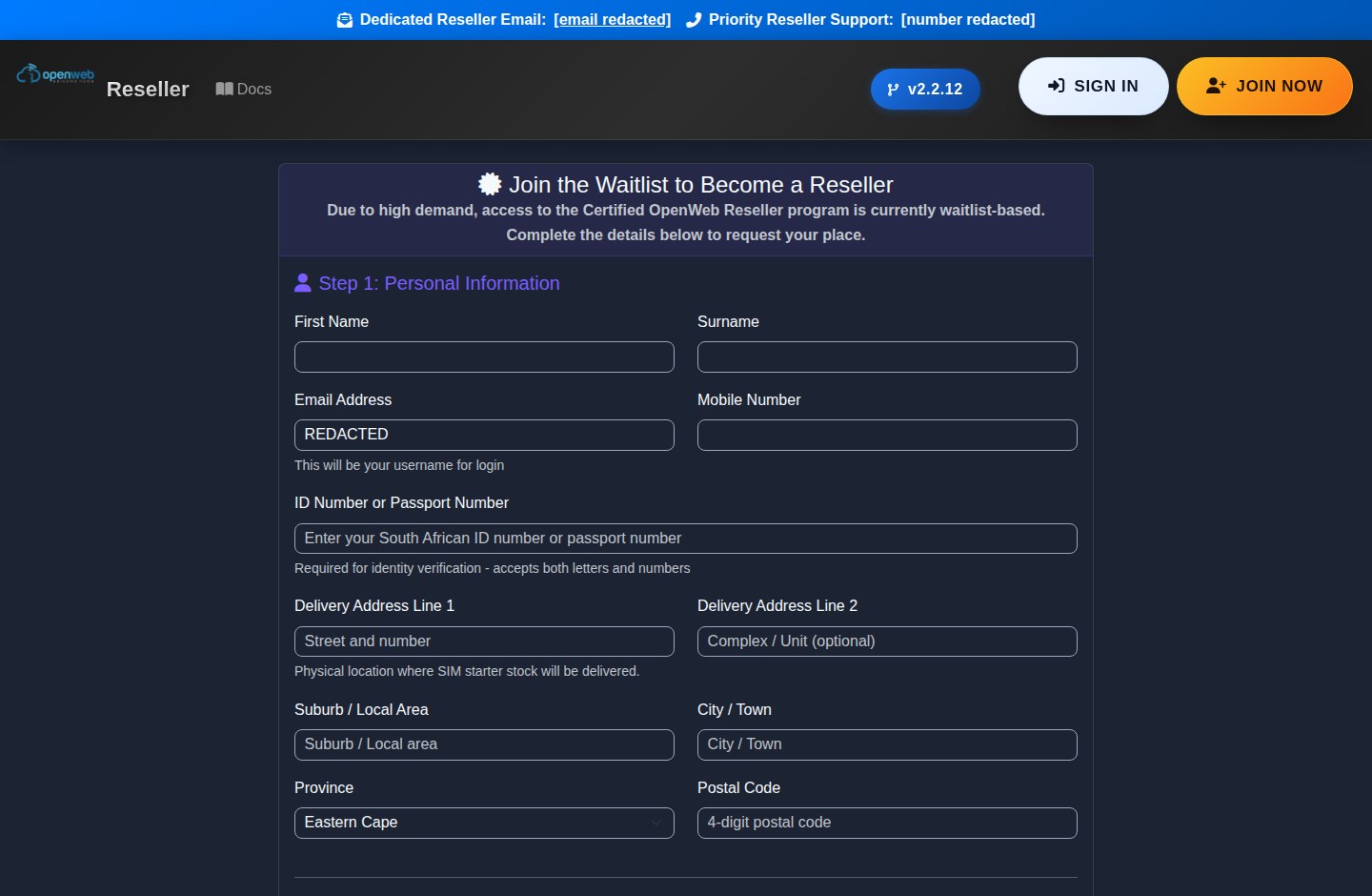
Current OpenWeb reseller panel screenshot: Waitlist registration and approval journey
Current production view: Waitlist registration and approval journey. Sensitive credentials are not exposed in this guide.

1. Join the waitlist

Complete every registration field with a reachable email and South African mobile number. After submission the applicant lands on /welcome. Device and IP controls limit duplicate registrations.

2. Receive approval

Approved applicants receive their reseller credentials and Certified OpenWeb Reseller confirmation. Rejected applications are final and cannot simply be recreated under another email.

3. Sign policy and configure branding

On first sign-in, accept the current Refund Policy and complete the White Label Wizard. Supply company, logo, support, colour, and subdomain details before the setup deadline.

4. Fund and sell

Fund the Credit Wallet, create the enduser, choose an available product, review the exact due-today amount, and submit. Verify fulfilment in Order History and Active Services.

Opening deposit: where the onboarding wizard presents the R500 opening-deposit offer, follow the live eligibility instructions. Any Welcome OWP incentive depends on the displayed deposit and saved-card conditions.
Chapter 3
Verified v2.2.12

Dashboard and Reseller Status

The dashboard is a command deck, not only a summary page.

Exact feature guides

Choose the task you need help with

These guides power the dashboard Helper Widget and link directly to the live reseller workflow.

Dashboard

Dashboard command centre

Read wallet cover, OWP progress, renewal position, account status, activity and current opportunities from one screen.

Open step-by-step guidance
How to use it

Start each session on the Dashboard, check the wallet and renewal HUDs, then use quick actions or current campaign cards to enter the relevant workflow.

Important

Campaign cards are eligibility and date controlled. The completed launch-path card is hidden once all onboarding milestones are complete.

Open this feature
Dashboard

VIP and Elite status

See the reseller tier, progress and any Elite-only presentation or weekly offer.

Open step-by-step guidance
How to use it

Elite is awarded automatically at 31 or more active services with a non-negative wallet, or may be granted manually by OpenWeb Admin.

Important

Elite-only products and campaign entries remain hidden from profiles that do not currently qualify or have an Admin override.

Open this feature
reseller.openweb.co.za
Current control room

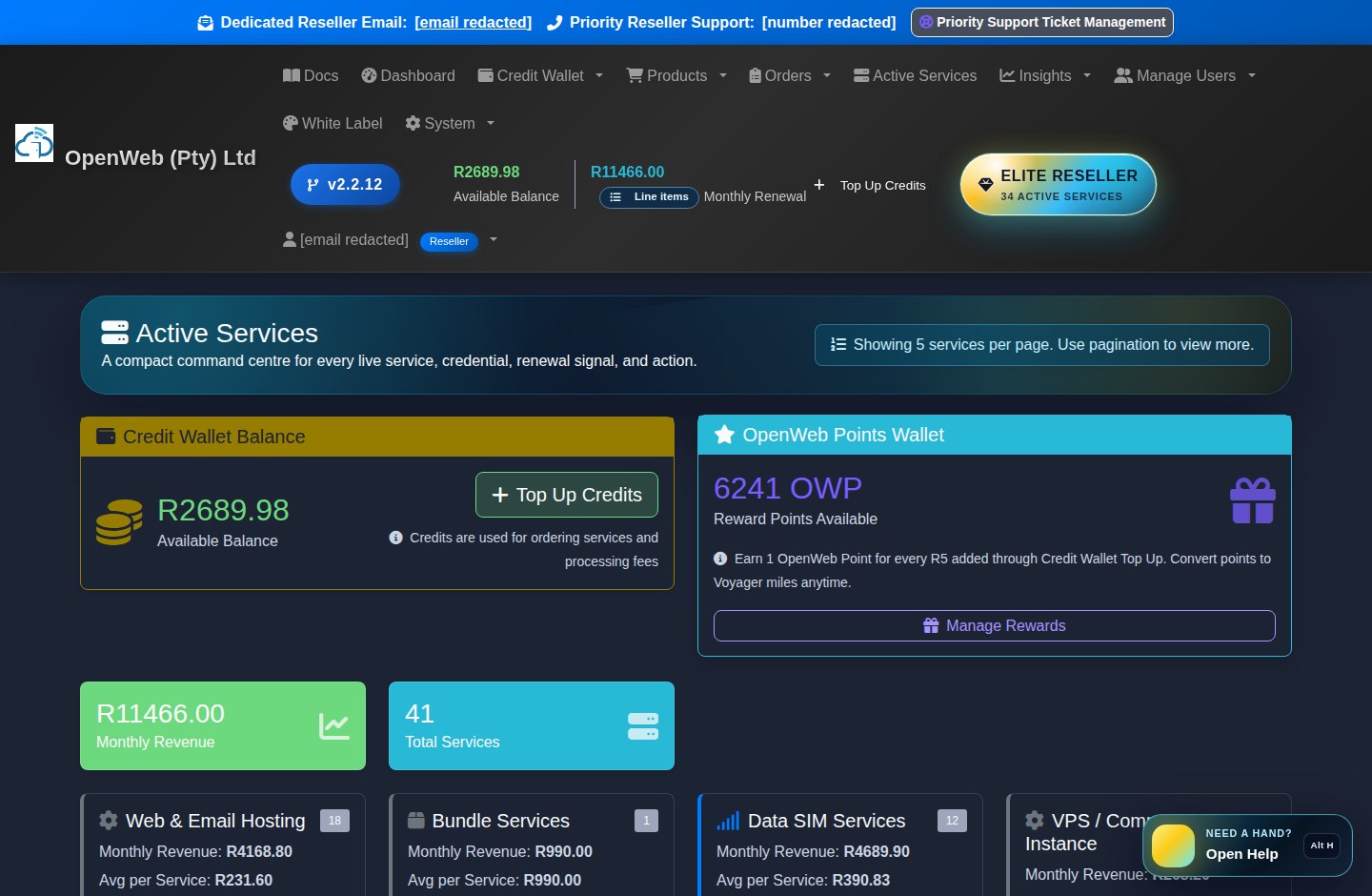
Reseller dashboard

Captured 4 September 2026
Elite StatusWallet HUDOWP RankRenewal ShieldQuick Actions
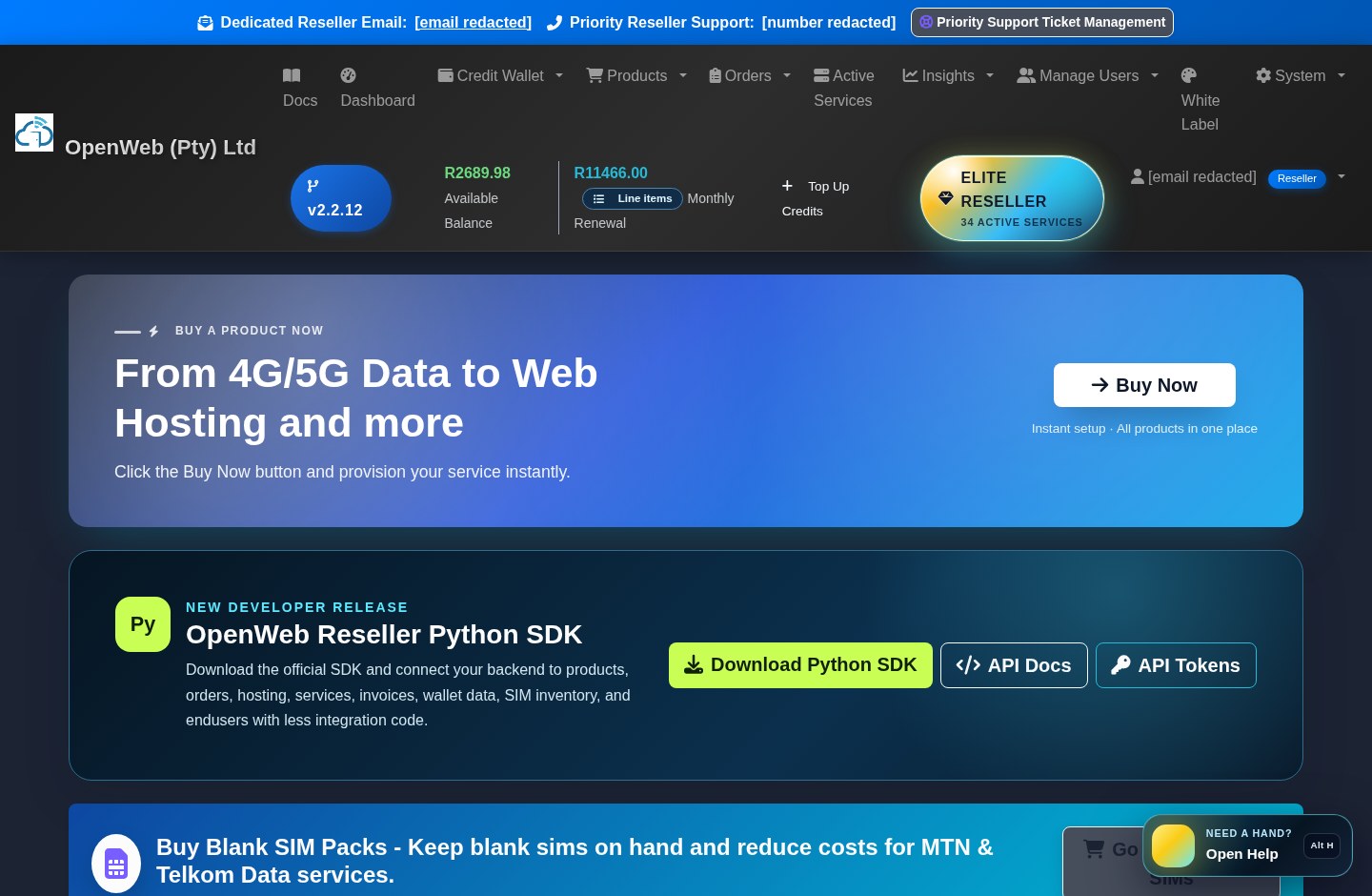
Current OpenWeb reseller panel screenshot: Reseller dashboard
Current production view: Reseller dashboard. Sensitive credentials are not exposed in this guide.

Wallet HUD

Shows buying power, renewal target, coverage percentage, shortfall, and links to Top Up and Wallet Mission Control. Negative balances signal an account that needs recovery.

OpenWeb Points HUD

Shows available and lifetime OWP, reward rank, progress to the next reward gate, and the current earn rate of 1 OWP for every R5 added through Credit Wallet Top Up.

VIP and Elite tiers

Automatic Elite status applies at 31 or more active services with a non-negative wallet. OpenWeb Admin may also grant Elite manually. Elite presentation and offers appear only for qualifying profiles.

Operational panels

Use Wallet Balance Explanation, recent activity, business statistics, quick actions, featured products, API links, SIM prompts, and support shortcuts to start daily work.

Promotional cards and Spin the Wheel appear only while their campaign is active and only when the reseller meets the campaign rules.
Chapter 4
Verified v2.2.12

Credit Wallet, PayFast, Smart Wallet, and Billing

The reseller platform is wallet-first. Orders and renewals use wallet funds before supported saved-card shortfall recovery.

Exact feature guides

Choose the task you need help with

These guides power the dashboard Helper Widget and link directly to the live reseller workflow.

Wallet & Billing

Credit Wallet overview

Reconcile available credit, live renewal exposure, transactions, payment evidence and wallet health.

Open step-by-step guidance
How to use it

Use Wallet Overview for the balance and transaction ledger, then open the renewal drilldown or Payment Trace when a total needs explaining.

Important

The authoritative renewal total is recalculated from period-eligible services; a stale stored wallet field must never override it.

Open this feature
Wallet & Billing

Top Up Credits

Add at least R100 to the Credit Wallet through the currently enabled payment checkout.

Open step-by-step guidance
How to use it

Enter the wallet amount, review the live fee and OWP preview, choose a new or valid saved PayFast card, and complete provider checkout once.

Important

The wallet is credited only after verified payment confirmation. Earn one whole OWP for every complete R5 topped up; fees, orders and renewals do not earn OWP.

Open this feature
Wallet & Billing

Smart Wallet

Configure eligible saved-card recovery for wallet shortfalls and minimum balance targets.

Open step-by-step guidance
How to use it

Choose the automation settings and a healthy saved PayFast method; the wallet is always consumed before any eligible card shortfall.

Important

A failed, removed or expired token cannot be used. Never repeat a charge while a provider confirmation is still pending.

Open this feature
Wallet & Billing

Saved Card Audit

Review which PayFast tokens are valid, blocked, defaulted or safe for one-click use.

Open step-by-step guidance
How to use it

Inspect the validation status, nickname or default a healthy card, and remove methods that should no longer be used.

Important

OpenWeb stores the provider token and masked card context, never the full card number. Failed methods are excluded from automated charging.

Open this feature
Wallet & Billing

Payment Trace

Trace a PayFast checkout through local initiation, provider references, confirmation and wallet credit.

Open step-by-step guidance
How to use it

Open Payment Trace from the wallet when a payment result is unclear and compare the timeline before retrying checkout.

Important

A browser success page is not proof of wallet settlement; verified provider confirmation and the completed transaction are authoritative.

Open this feature
Wallet & Billing

Renewal amount and billing

Understand the single monthly total shared by the header, Dashboard, Wallet, risk tools and reseller API.

Open step-by-step guidance
How to use it

Open the renewal line-item drilldown to see every recurring service and annual domain that is due in the selected period.

Important

Blank SIMs cost R0 to hold. Billing may take the wallet negative and suspend services; recovery requires the wallet to return to at least R0.00.

Open this feature
reseller.openweb.co.za
Finance operations

Credit wallet and Smart Wallet

Captured 4 September 2026
PayFastSaved CardsSmart WalletPayment TraceOWP Ledger
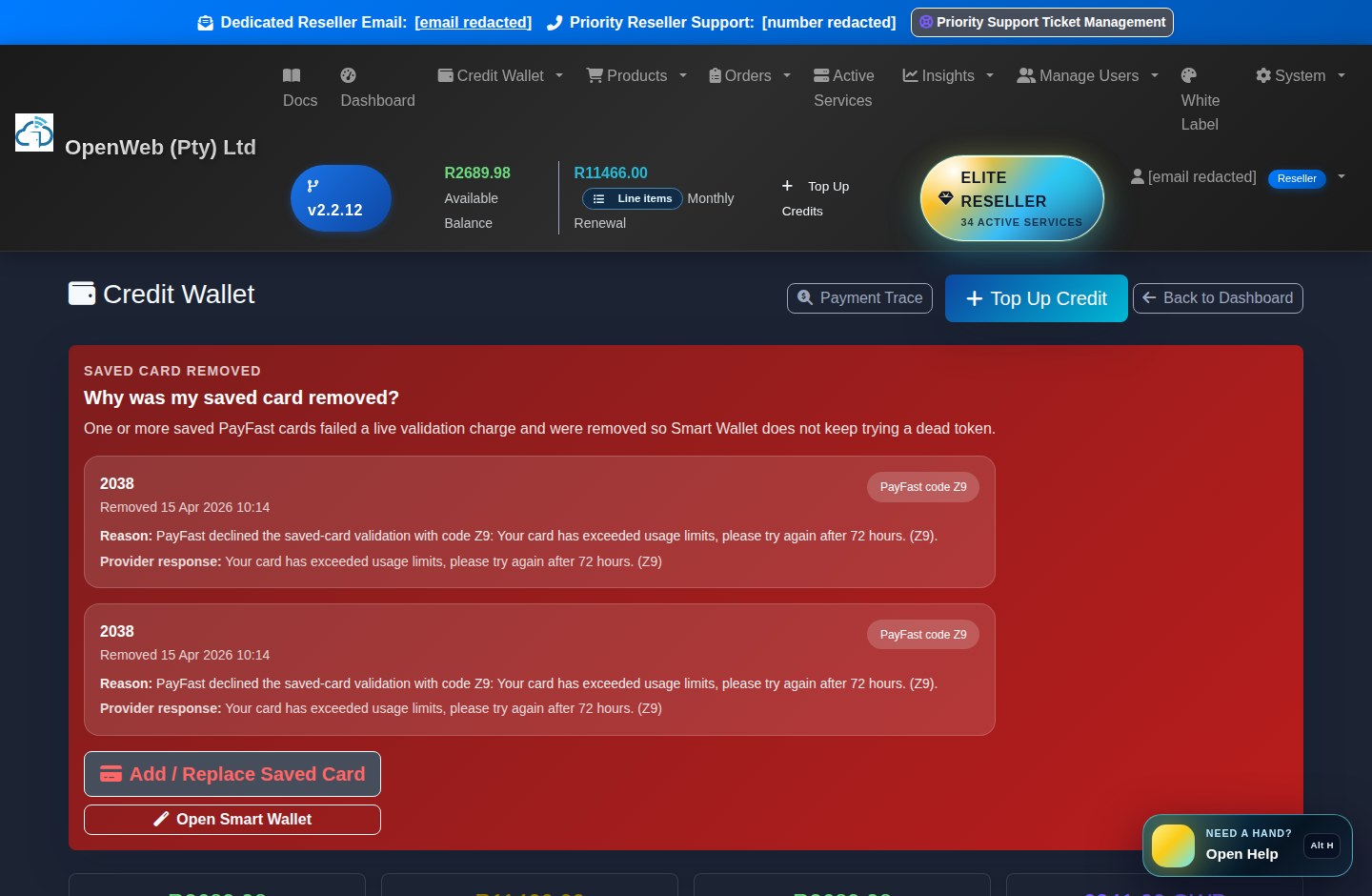
Current OpenWeb reseller panel screenshot: Credit wallet and Smart Wallet
Current production view: Credit wallet and Smart Wallet. Sensitive credentials are not exposed in this guide.

Credit Wallet

Review balance, renewal target, transaction history, recent OWP activity, payment traces, and saved-card recovery warnings. The header, Dashboard, Wallet API, Renewal Risk Center, Discount Journey, Smart Wallet, and Top Up page all use the same live active-service renewal calculation.

Credit Wallet

Top Up Credits

PayFast is the available card gateway. The centralized form displays the wallet amount, current fee or promotion, card-saving choice, and the OWP earned at 1 point per complete R5 topped up.

Top Up

Smart Wallet

Configure supported minimum-balance and saved-card fallback behaviour. The wallet is consumed first; only the eligible shortfall should be charged to the saved PayFast method.

Smart Wallet

Saved Card Audit

Inspect active PayFast methods and health status. Failed or unusable cards are not safe for automated shortfalls and may require a fresh PayFast checkout.

Saved Card Audit

Monthly billing rules

  • The renewal total is calculated from all active recurring services: data, fibre, voice, hosting, recurring Voyager allocations, legacy Microsoft 365, monthly cloud, annual domains when due, and active recurring add-ons.
  • Blank SIM inventory has no monthly holding charge.
  • Billing can deduct beyond the available wallet and create a negative balance. Services can be suspended when billing is unpaid.
  • Recovery requires the wallet to return to at least R0.00. The payment recovery monitor then updates billing status and reactivation workflows.
  • Use Payment Trace when PayFast reports success but the expected wallet movement is unclear. Do not repeat a card payment until the trace has been checked.
Fee authority: the live Top Up page is authoritative. Standard PayFast client fee logic or temporary fee-free promotions can change without changing the underlying wallet amount.
Chapter 5
Verified v2.2.12

Customers, Endusers, and Panel Admins

Create and maintain the people who receive services, while preserving ownership and audit history.

Exact feature guides

Choose the task you need help with

These guides power the dashboard Helper Widget and link directly to the live reseller workflow.

Customers

Create New Customer

Create the enduser identity that will own services and use the branded client panel.

Open step-by-step guidance
How to use it

Enter accurate customer identity, email, phone and access details before starting a service order.

Important

Use a unique email and verify ownership before assigning services; customer data drives portal access and notifications.

Open this feature
Customers

Manage Customers

Search customers, inspect their service context, change status and safely simulate the enduser view.

Open step-by-step guidance
How to use it

Find the customer from the complete list, open their services, or start an enduser simulation for support diagnosis.

Important

Always leave simulation through the return action. Do not share the reseller owner login with an enduser.

Open this feature
Customers

Recently Deleted Customers

Review deletion snapshots and restore eligible customer records without losing operational evidence.

Open step-by-step guidance
How to use it

Run the deletion preview first, confirm the ownership effects, and use Recently Deleted when an eligible snapshot must be restored.

Important

Deletion reassigns linked operational records according to the integrity workflow; it is not a blind cascade delete.

Open this feature
Customers

Panel Admins

Give staff their own scoped reseller-panel access and manage the original owner account.

Open step-by-step guidance
How to use it

Create or update staff identities and permissions from Panel Admins; signed-in users can change their own password without supplying the old one.

Important

Use delegated accounts instead of sharing the reseller owner password. Remove access when a staff role ends.

Open this feature
Customers

Profile and password

Maintain reseller contact/company details and change the currently signed-in account password.

Open step-by-step guidance
How to use it

Use Profile for company and contact data, and Change Password for a new private password with confirmation.

Important

Password changes apply to the authenticated identity and are blocked during unsafe impersonation or simulation contexts.

Open this feature
reseller.openweb.co.za
Reseller CRM

Customer management

Captured 4 September 2026
SearchService CountSimulate PortalDelete PreviewPanel Admins
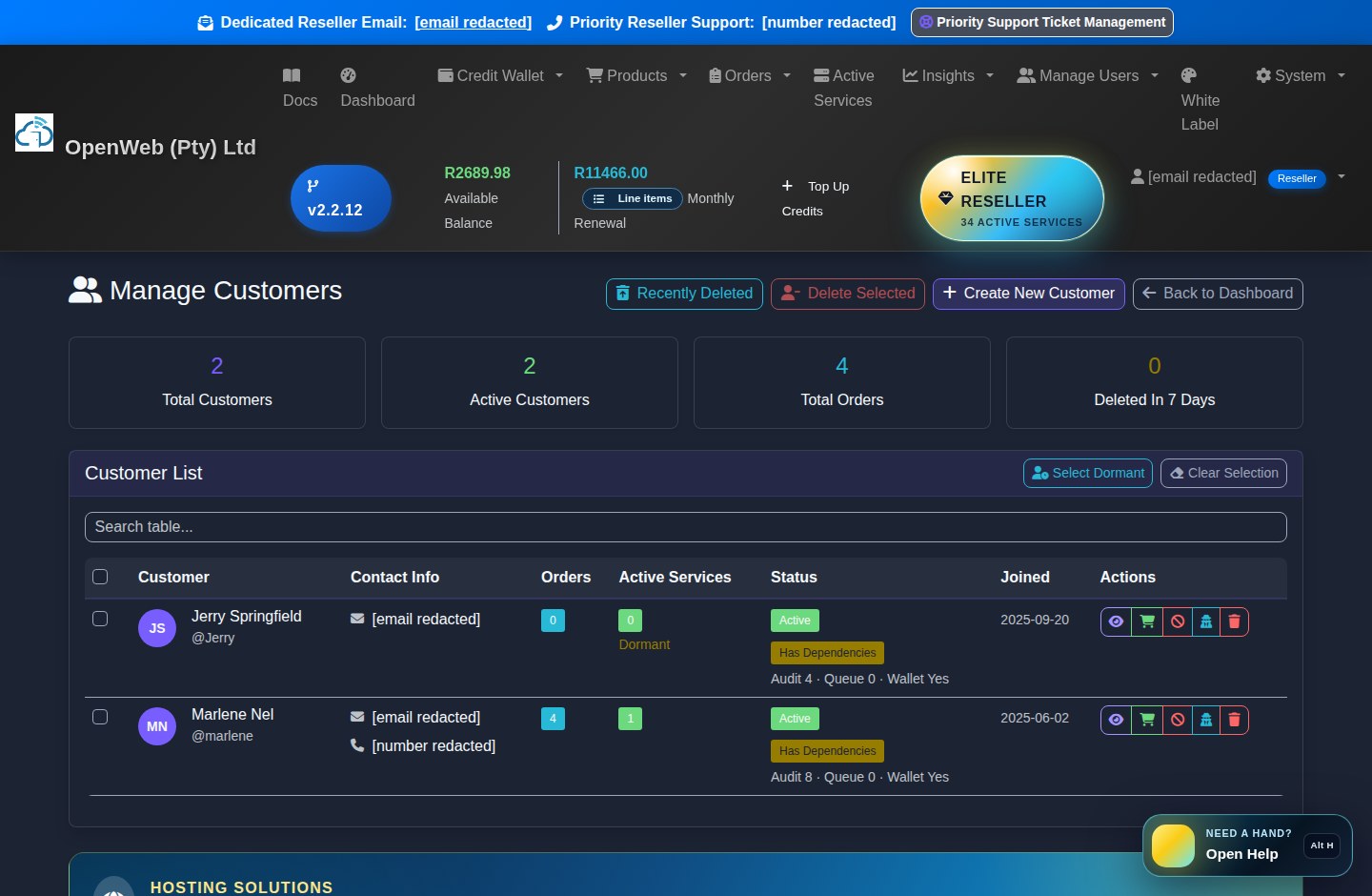
Current OpenWeb reseller panel screenshot: Customer management
Current production view: Customer management. Sensitive credentials are not exposed in this guide.

Create New Customer

Create the client before ordering. Keep the name, email, phone, and password accurate because these drive ownership, login, and notifications.

Create Customer

Manage Customers

Search the complete customer list, inspect service/order counts, update status, and simulate the enduser portal when support requires seeing the client view.

Manage Customers

Delete safely

Use the delete preview before confirmation. Deleting an enduser preserves operational continuity by returning linked services/orders to the reseller and writes a deleted-customer snapshot.

Recently Deleted

Panel Admins

The original reseller owner appears alongside delegated staff. Give each staff member only the required permissions; every signed-in owner, panel admin, or enduser can change their own password without supplying the old password.

Panel Admins
Chapter 6
Verified v2.2.12

Buy New Service, Pricing, and Product Rules

The main catalogue contains reseller-orderable services. Cloud and standalone hardware deliberately use separate guided flows.

Exact feature guides

Choose the task you need help with

These guides power the dashboard Helper Widget and link directly to the live reseller workflow.

Products & Pricing

Buy New Service

Browse currently active reseller products and complete the correct product-specific checkout.

Open step-by-step guidance
How to use it

Choose a category and available product, review reseller pricing and due-now charges, select the customer and required SIM or delivery option, then submit once.

Important

Cloud and standalone hardware use separate workflows. Sold-out or inactive products cannot be ordered, while historical services remain intact.

Open this feature
Products & Pricing

Telkom plan finder and quotations

Compare current Telkom tiers, estimate fit, save a shortlist and create a branded client quotation.

Open step-by-step guidance
How to use it

Use the estimator and comparison controls in the Telkom catalogue, select plans, then create a shareable link or branded PDF from the shortlist workspace.

Important

Recommendations are guidance, not a usage guarantee. Pricing is frozen into the saved quotation while live order availability is checked again at checkout.

Open this feature
Products & Pricing

Price List

Review the current reseller product basket in its network-first catalogue order.

Open step-by-step guidance
How to use it

Use the Price List for a consolidated reference, then enter Buy New Service for current stock, discount and checkout calculations.

Important

The live checkout overrides old exports because provider stock, campaigns and pro-rata values can change.

Open this feature
Products & Pricing

Set Enduser Price

Set reseller-controlled customer prices while retaining the OpenWeb reseller cost underneath.

Open step-by-step guidance
How to use it

Choose the applicable product or service and save the client-facing amount used in enduser presentation and margin reporting.

Important

Changing an enduser price does not change OpenWeb cost, wallet deductions or provider billing.

Open this feature
reseller.openweb.co.za
Sales workflow

Product catalogue and create service

Captured 4 September 2026
MTN MobileMTN FixedTelkomFibreVoiceHosting
Current OpenWeb reseller panel screenshot: Product catalogue and create service
Current production view: Product catalogue and create service. Sensitive credentials are not exposed in this guide.

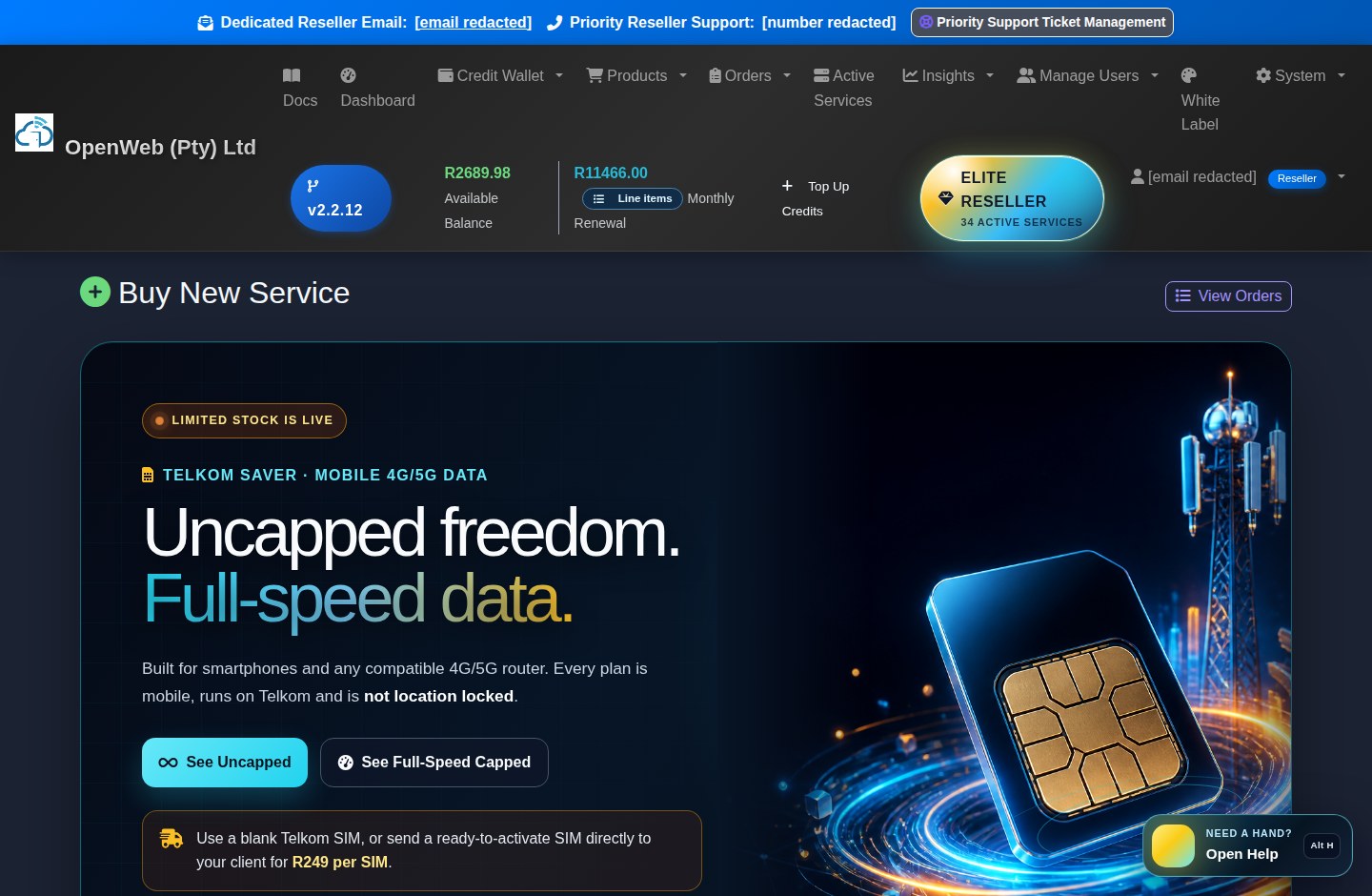
MTN Mobile (GSM)

Mobile APN services use mobile.is.co.za. Choose capped or uncapped options and allocate a compatible blank MTN Mobile SIM when required.

MTN Fixed 5G

Location-locked fixed wireless uses ws.dd.fwa, an MTN Fixed-approved router, and the exact installation/location-lock acknowledgement requested at checkout.

Telkom, Telkom One and Saver drops

Select available standard products and a blank Telkom SIM where required. Timed Telkom Saver drops appear only while active, show the reseller-wide purchase limit, and may offer an OpenWeb pre-activated SIM delivery option.

OpenServe Fibre

Requires the complete installation address, the standard pro-rata tier, and a signed six-month minimum-term agreement. Early cancellation offers either R999 for end of next calendar month or free cancellation at the individual six-month term end.

Voice (SIP)

Voice services provide SIP account details after provisioning. Blank virtual SIM packs may be offered separately through SIM Inventory.

Web & Email Hosting

Hosting has its own domain search and direct provisioning journey. Qualifying packages can include domain benefits shown before final confirmation.

SAA Voyager

Voyager offerings may be once-off or recurring. Recurring allocations become part of the monthly renewal calculation.

Microsoft 365

Retired for new sales. Existing active clients retain service, but cannot upgrade or downgrade and may only schedule cancellation under normal rules.

Static IP add-on

Not currently sold for new orders. Existing provisioned Static IP services remain valid; a cloud server primary IP is still displayed in the Static IP field.

Telkom plan tools

Compare current tiers, use the usage estimator, save plan shortlists, share selected comparisons, and create reseller-branded client quotation PDFs. Live stock and checkout pricing remain authoritative.

Price and checkout sequence

  1. Choose the category and an available, non-sold-out product.
  2. Review RRP, reseller discount, discounted monthly cost, product features, and current stock requirements.
  3. Select or create the enduser, allocate a SIM or delivery option where offered, and complete every product-specific field.
  4. Review the exact due-today amount. Pro-rata, hardware, courier, OWP waivers, or delivery can change that figure.
  5. Submit once. Use Order History to verify the request before attempting again.
Chapter 7
Verified v2.2.12

SIM Inventory and SIM-dependent Orders

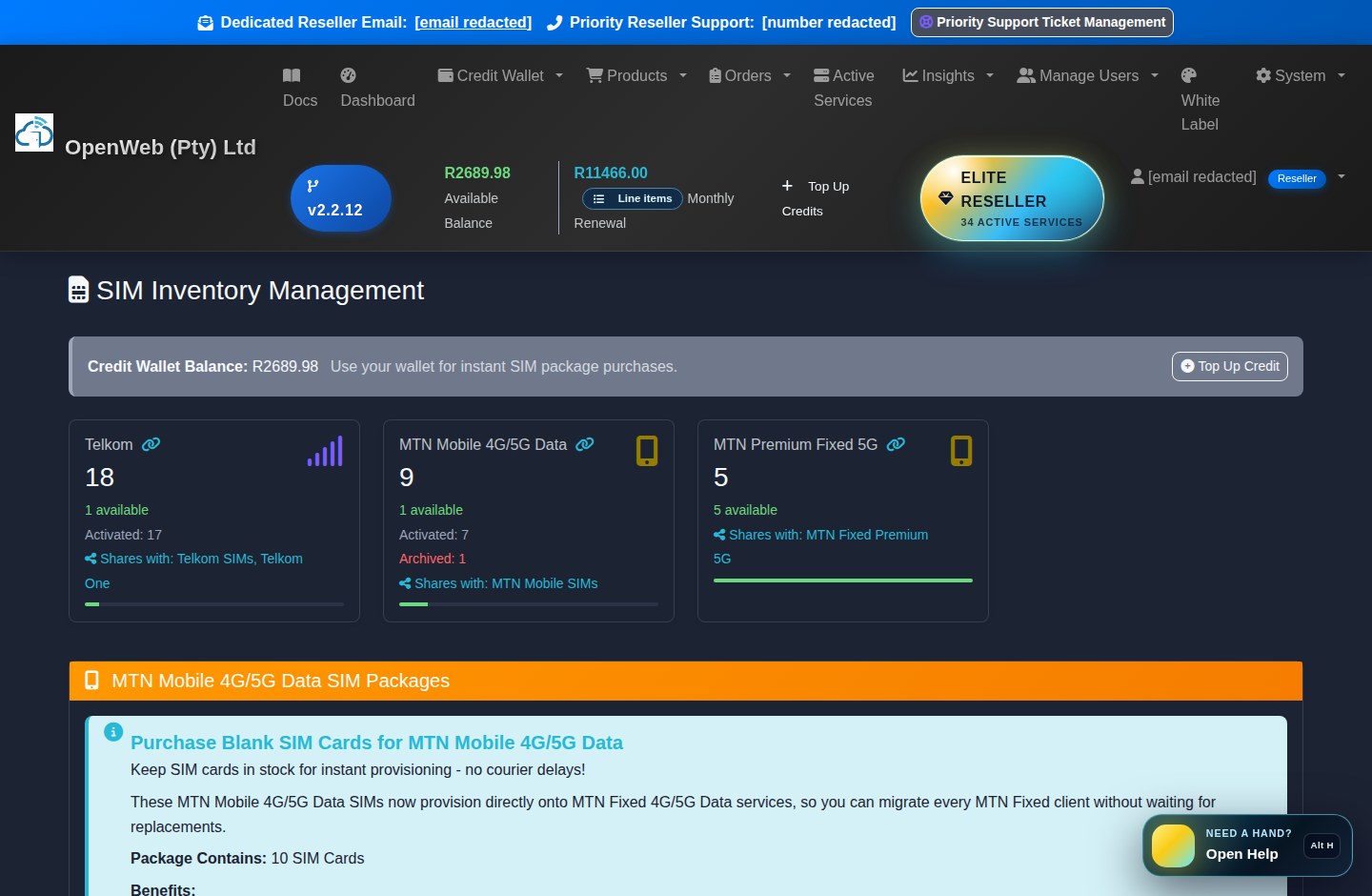
Inventory is available only when a SIM is truly unused and not linked to an order or service.

Exact feature guides

Choose the task you need help with

These guides power the dashboard Helper Widget and link directly to the live reseller workflow.

SIM Inventory

Blank SIM inventory

Buy and track MTN Mobile, MTN Fixed, Telkom and other compatible blank SIM stock.

Open step-by-step guidance
How to use it

Open the correct network bucket, order an available pack, and allocate only SIMs that are not linked to another order or service.

Important

MTN Mobile and MTN Fixed SIMs are different. Holding unused SIMs costs R0 per month, but purchase and courier charges remain once-off.

Open this feature
SIM Inventory

SIM Swap

Request a replacement SIM while preserving the reseller's service workflow and audit trail.

Open step-by-step guidance
How to use it

Start from the eligible Active Service, select the replacement context, review the live fee and submit the request for Admin provisioning.

Important

The new serial format is digits-only with no fixed length. MTN Mobile swaps may also receive a new account username during provisioning.

Open this feature
SIM Inventory

Free Network Change

Move an eligible Telkom service to an MTN Mobile (GSM) plan when Admin has enabled a monthly quota.

Open step-by-step guidance
How to use it

Use Network Change on the Telkom service, choose the MTN Mobile plan, enter complete white-label delivery details and approve the price-difference review.

Important

The feature is off by default. Shipping shows R249 struck out and R0 charged; cheaper target plans receive no credit, and the wallet charge occurs only when Admin completes the change.

Open this feature
reseller.openweb.co.za
Stock control

SIM inventory

Captured 4 September 2026
MTN MobileMTN FixedTelkomVoiceNo Holding Fee
Current OpenWeb reseller panel screenshot: SIM inventory
Current production view: SIM inventory. Sensitive credentials are not exposed in this guide.
  • Use the network-specific inventory bucket required by the product. MTN Mobile and MTN Fixed are different service types and must not be mixed.
  • A SIM attached to any order or service is not reusable even if an old status still appears available.
  • Blank inventory costs R0 per month to hold. Purchase prices and courier charges are once-off and shown before payment.
  • Some eligible products offer OpenWeb SIM delivery instead of reseller inventory. When delivery is offered, provide the correct recipient, address, and contact number.
  • SIM swaps are requested from Active Services. Current reseller fees are Telkom R129 and MTN R299, subject to the live confirmation screen.
  • Free Network Change appears only when OpenWeb Admin enables it and assigns a monthly quota. It moves an eligible Telkom service to MTN Mobile, captures white-label delivery details, shows any price difference, and never credits a cheaper target plan.
Open SIM Inventory
Chapter 8
Verified v2.2.12

Buy Hardware and Router Fulfilment

Standalone hardware is ordered separately from service catalogue products and requires delivery details.

Exact feature guides

Choose the task you need help with

These guides power the dashboard Helper Widget and link directly to the live reseller workflow.

Hardware

Buy Hardware

Order the current standalone router hardware with wallet and supported PayFast payment combinations.

Open step-by-step guidance
How to use it

Select the hardware, enter complete delivery and contact details, choose the payment method and review the once-off amount before checkout.

Important

Hardware stays in fulfilment until Admin records dispatch and a waybill. A router bundled with an eligible package may have a different price and separate warehouse delivery.

Open this feature
reseller.openweb.co.za
Physical fulfilment

Hardware checkout

Captured 4 September 2026
ZTE G5TSWalletNew PayFast CardSaved CardWaybill
Current OpenWeb reseller panel screenshot: Hardware checkout
Current production view: Hardware checkout. Sensitive credentials are not exposed in this guide.

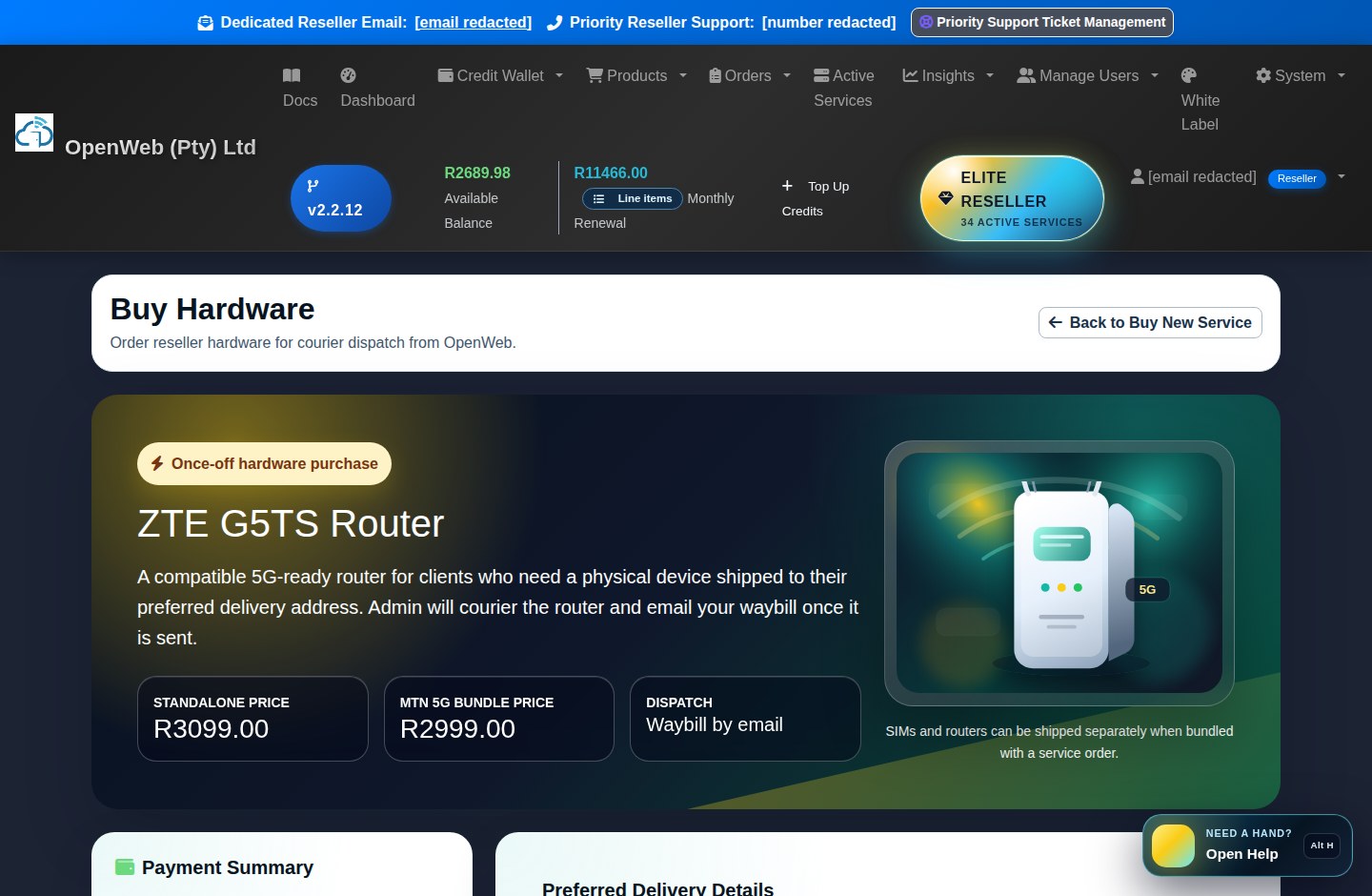
The current hardware page offers the ZTE G5TS router at the live standalone price. A different bundled price may be presented when the router is ordered inside an eligible MTN 5G service checkout.

Payment choices

Depending on available wallet/card state, choose wallet, a new PayFast card, wallet plus a new card, saved card, or wallet first with saved-card shortfall.

Delivery data

Provide contact person, phone, province, street address, suburb/building, city, postal code, and optional courier notes.

Pending fulfilment

The paid hardware request appears in Order History while OpenWeb prepares dispatch. It is not treated as an instantly provisioned digital service.

Waybill notification

Once marked sent, the reseller receives the waybill and delivery expectation. SIMs and routers can arrive separately when different warehouses fulfil them.

Buy Hardware
Chapter 9
Verified v2.2.12

Cloud Setup Wizard and Cloud Toolbox

Cloud products are provisioned only through the guided Cloud Setup Wizard, never from the general product catalogue.

Exact feature guides

Choose the task you need help with

These guides power the dashboard Helper Widget and link directly to the live reseller workflow.

Cloud Setup Wizard

Cloud Setup Wizard

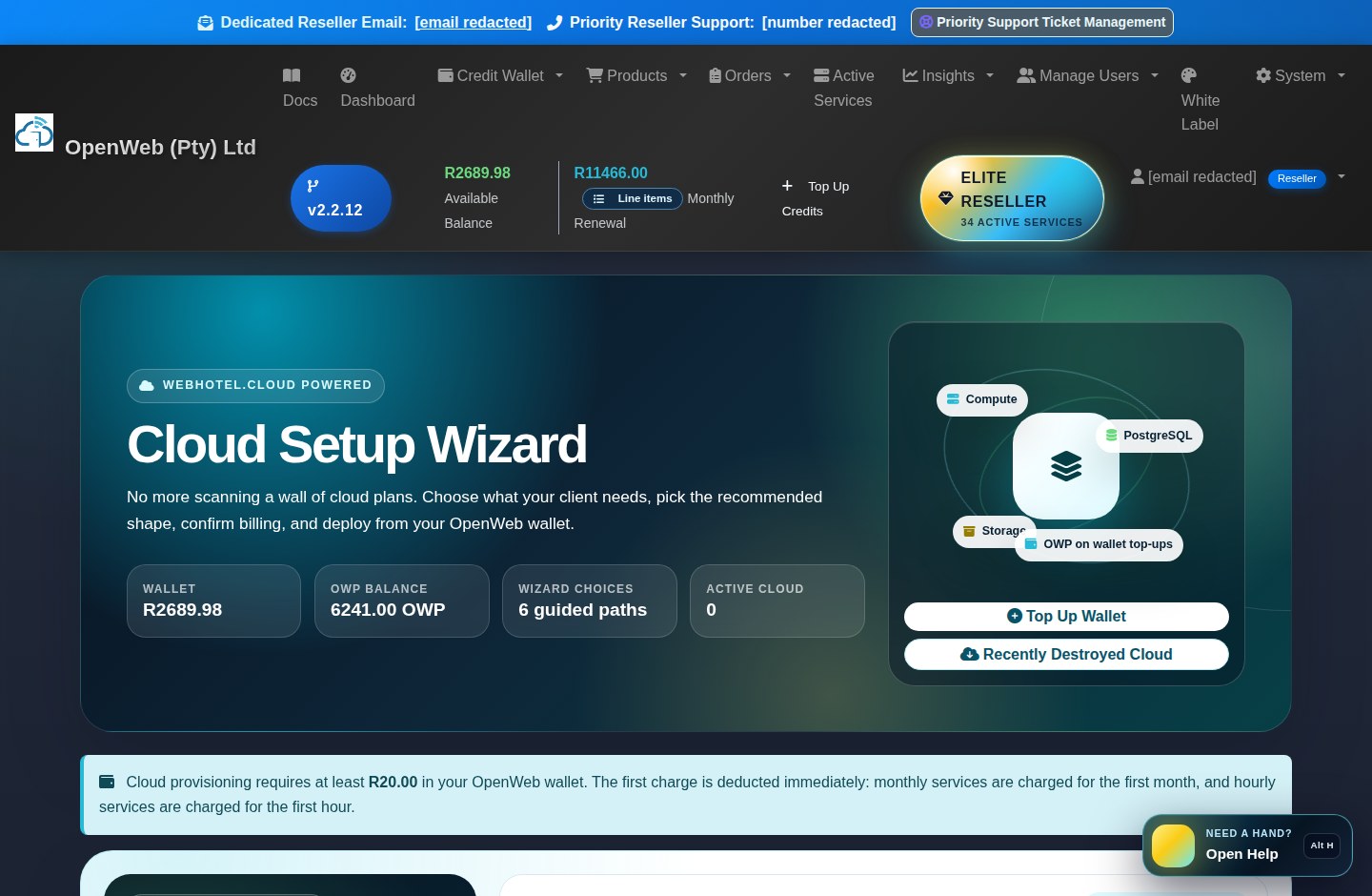
Deploy only currently stocked WebHotel.cloud Compute, storage, database and application services through a guided flow.

Open step-by-step guidance
How to use it

Choose the service purpose, provider-backed plan, workload or OS, billing mode, service name and credentials, then review the first wallet charge.

Important

At least R20 wallet credit is required. Provider stock refreshes about every five minutes and provisioning can take up to 30 minutes.

Open this feature
Cloud Setup Wizard

Cloud live status and Toolbox

Follow real provider provisioning steps and manage an active instance with Start, Stop, Restart and Console.

Open step-by-step guidance
How to use it

Keep the live status modal open during deployment, then use Your Cloud Services for connection details, application access and provider-backed actions.

Important

Actions remain disabled until provider state is active. Console must use the current provider URL and may open in a separate secured window.

Open this feature
Cloud Setup Wizard

Destroy and Recently Destroyed Cloud

Immediately destroy an hourly or monthly Cloud service and retain cleanup evidence without keeping a live service.

Open step-by-step guidance
How to use it

Open Destroy, review provider preflight, confirm permanent data loss, then follow the cleanup result in Recently Destroyed.

Important

Destroy is irreversible and monthly unused time is not refunded. A missing provider record follows stale-record cleanup rather than month-end cancellation.

Open this feature
reseller.openweb.co.za
Guided deployment

Cloud Setup Wizard

Captured 4 September 2026
Guided WizardDynamic StockHourlyMonthlyLive Provisioning
Current OpenWeb reseller panel screenshot: Cloud Setup Wizard
Current production view: Cloud Setup Wizard. Sensitive credentials are not exposed in this guide.

Deployment flow

  1. Open the Cloud Setup Wizard and choose what you want to deploy, such as Compute, Object Storage, a managed database, or another currently stocked provider service. Storage Box remains available only for historical services.
  2. Use the wizard filters and prompts to select workload, operating system/application, region, plan, and hourly or monthly billing where offered. Object Storage capacity can be selected from 250GB through 4TB in 250GB increments.
  3. Enter the required service name, Linux username, and credential choices. Review the exact first charge.
  4. The Credit Wallet must have at least R20 available. The first monthly or hourly deduction occurs when initialization begins.
  5. Keep the provisioning modal open to follow the provider event stream. Compute can take up to approximately 30 minutes.

Dynamic catalogue

WebHotel.cloud stock refreshes approximately every five minutes. Only current provider stock should be presented for new deployments.

Object Storage sizing

Select 250GB to 4TB in 250GB increments. The first charge and recurring monthly rate update with capacity, are deducted from the Credit Wallet, and remain separate from other service deductions.

Credentials and access

Active services show primary IP, SSH or remote access details, console access, and application GUI credentials for supported Hermes, OpenClaw, or OpenVPN workloads.

Toolbox state

Start, Stop, Restart, Console, and Destroy remain disabled while provisioning is incomplete. They become available only when provider state is active and supports the action.

Hourly Cloud logs

Hourly Cloud charges are written to the Cloud transaction log. Cloud usage does not earn OWP; points are earned when funds are added through Credit Wallet Top Up.

Destroy means destroy: immediate Cloud Destroy permanently removes the provider resource and all data. Monthly customers receive no refund for unused days. Read the provider preflight details and confirmation modal before proceeding.
Chapter 10
Verified v2.2.12

Order History, Invoices, Statements, and Cancellations

Orders preserve what was requested; financial documents preserve what was billed.

Exact feature guides

Choose the task you need help with

These guides power the dashboard Helper Widget and link directly to the live reseller workflow.

Orders & Records

Full Transaction Log

Review reseller-level operational and financial actions in chronological order.

Open step-by-step guidance
How to use it

Filter the transaction history by the available criteria and use references to connect wallet, order, fulfilment or courier events.

Important

The log is evidence, not an action queue. Use the linked operational page to correct or complete a workflow.

Open this feature
Orders & Records

Order History

Inspect captured order terms, payment state, fulfilment status, delivery options and immutable product context.

Open step-by-step guidance
How to use it

Search by order or customer, open the order detail and verify its exact SKU and submitted options before creating a repeat request.

Important

Do not infer payment from a status label alone; inspect payment evidence and never clone an order unless a true repeat is intended.

Open this feature
Orders & Records

Invoices

Download invoice evidence whose header total reconciles with its line items.

Open step-by-step guidance
How to use it

Open the invoice list, select the required record and download its PDF for the relevant order, top-up or billing period.

Important

If a line-item and stored total differ, stop and contact support; an invalid invoice must not be treated as authoritative.

Open this feature
Orders & Records

Statements

Reconcile wallet and billing activity across a selected reporting period.

Open step-by-step guidance
How to use it

Choose the date range and download or review the statement when a period view is more useful than one invoice.

Important

Statements summarize ledger activity; provider fulfilment and service status still belong in Order History and Active Services.

Open this feature
Orders & Records

Pending Cancellations

Schedule and track service cancellations under the product's current effective-date rules.

Open step-by-step guidance
How to use it

Start cancellation from Active Services, review the quoted effective date and any product-specific fee, then track the accepted request here.

Important

Normal cancellations end after the next calendar month unless the reseller profile has current-month permission. Cloud uses immediate Destroy; OpenServe has six-month term choices.

Open this feature
reseller.openweb.co.za
Commercial records

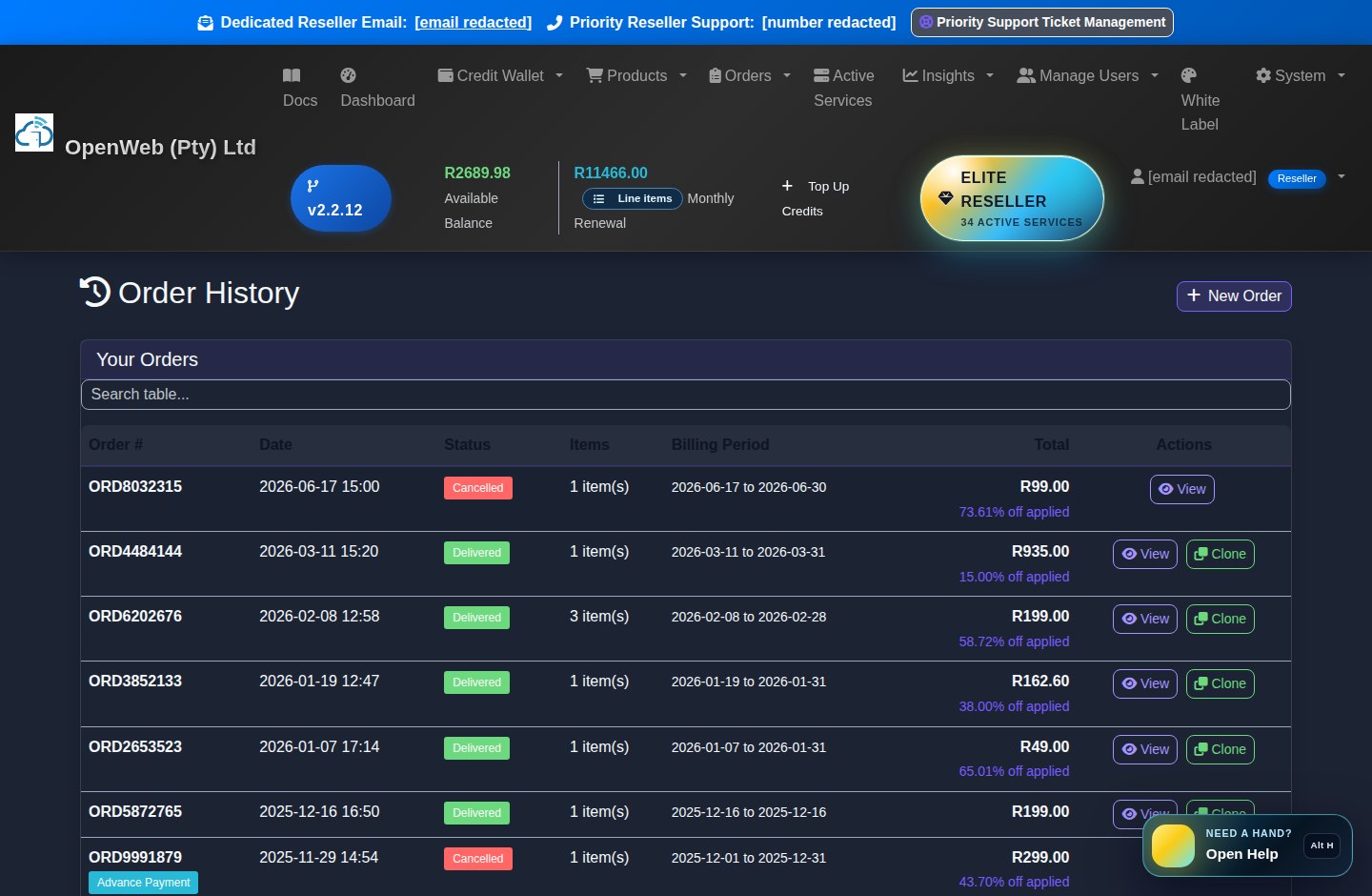
Order history

Captured 4 September 2026
StatusItemsTotalsViewClone
Current OpenWeb reseller panel screenshot: Order history
Current production view: Order history. Sensitive credentials are not exposed in this guide.

Order History

Review order number, date, status, line items, totals, payment evidence, delivery options, and product-specific data. Clone only when a genuine repeat order is intended.

Orders

Invoices

Download valid invoice documents for orders, topups, and billing records. If the stored total does not reconcile to line items, contact support instead of relying on the document.

Invoices

Statements

Use statements for period-based wallet and billing history. They are better than an individual invoice when reconciling the account over time.

Statements

Pending Cancellations

Normal services follow their displayed cancellation schedule. Microsoft 365 legacy services can only cancel under the normal future-effective rule; Cloud has separate immediate-destroy behaviour.

Pending Cancellations
Chapter 11
Verified v2.2.12

Active Services Command Centre

The redesigned view searches and filters the reseller's complete service set, not only the cards already visible on screen.

Exact feature guides

Choose the task you need help with

These guides power the dashboard Helper Widget and link directly to the live reseller workflow.

Active Services

Active Services

Search and control the reseller's complete service set without depending on the currently visible page.

Open step-by-step guidance
How to use it

Search by service, customer, username, SIM, MSISDN, domain, provider ID or IP; combine family and problem filters, compact mode and export tools.

Important

Filters and search are server-backed. Category comes from product/provider identity, never from text such as a .cloud domain suffix.

Open this feature
Active Services

MTN Mobile Usage Stats

View Masterfile-backed usage, connections, SIM identity and current session IP for mobile.is.co.za services.

Open step-by-step guidance
How to use it

Open Usage Stats on an MTN Mobile service to view total GB, active connections, three-month history, MSISDN, account type and authoritative SIM serial.

Important

Static IP displays the current connection IP and can change between sessions. Missing provider snapshots should be refreshed through the supported action, not repeated page searching.

Open this feature
Active Services

Network Topups

Buy eligible MTN or Telkom FUP-lift and data topups from the service that receives them.

Open step-by-step guidance
How to use it

Select Top Up on the eligible Active Service, choose an available duration or GB amount, pay, and wait for Admin fulfilment where required.

Important

Activation is not instant. Time-based and volume topups expire under their displayed rules and are removed from Active Services after the retention period.

Open this feature
Active Services

Upgrades and downgrades

Request an eligible package change while preserving service identifiers and the correct future renewal amount.

Open step-by-step guidance
How to use it

Open the service action, compare current and target packages, and submit the effective-date request shown by the panel.

Important

MTN Mobile upgrades are scheduled for the first of the next month. Retired Microsoft 365 services cannot upgrade or downgrade.

Open this feature
reseller.openweb.co.za
Live service control

Active services management

Captured 4 September 2026
All-service SearchFamily FiltersProblems OnlyCompactCSV/PDF
Current OpenWeb reseller panel screenshot: Active services management
Current production view: Active services management. Sensitive credentials are not exposed in this guide.

Find and organise services

  • Search across all services by service ID, product, customer, username, SIM, MSISDN, domain, provider identifier, or IP address. Search is server-backed and remains effective beyond the current page.
  • Use All, Cloud, MTN, Telkom, Hosting, and Rewards filters to request that family from the full service dataset.
  • Use Problem Services Only for pending, suspended, failed-sync, missing-credential, or otherwise attention-worthy records.
  • Compact mode reduces card height. CSV and PDF export the currently visible result set. The sticky count/filter bar and scroll hints preserve context.

Service actions and data

Service familyDisplayed informationAvailable actions
MTN Mobile (GSM)Product, monthly cost, Masterfile MSISDN and SIM serial, account type, current-month total usage in GB, active connection count, and the current session IP in Static IP.Select Usage Stats for the three-month Masterfile history and connection rows; use eligible topup, SIM swap, scheduled package change, cancellation, and export actions.
MTN Fixed/Telkom dataProduct, monthly cost, SIM/MSISDN, account username, provider usage/session context where supported, IP where available, status, and active topups.Usage refresh, eligible topup, SIM swap, scheduled package change, cancellation, and export.
Fibre/VoicePackage, account identifiers, installation/SIP details, monthly amount, and status.Eligible package change, cancellation, service detail export, and support evidence.
Hosting/DomainDomain, cPanel server badge, masked password, nameservers, DNS health, SSL readiness, and domain renewal state.cPanel SSO, reveal credentials, nameserver changes, DNS checks, domain renewal, welcome details, plan change, or cancellation where eligible.
CloudProvider presentation, service state, monthly or hourly amount, primary IP in Static IP, SSH/application credentials, GUI URLs, and provider metadata.Start, Stop, Restart, Console, Destroy, status refresh, and drill-down modal after active state.
Rewards/VoyagerReward period, allocation or redemption details, recurring amount where applicable, and status.View fulfilment and manage relevant reward/Voyager workflow.

Network topups

MTN time-based FUP lifts and Telkom day-based FUP lifts require admin processing. Data-volume topups remain visible for their validity period. Active topups display in red; expired/used entries remain temporarily for history and then fall off automatically.

Active Services
Chapter 12
Verified v2.2.12

Hosting, cPanel, Domains, and DNS

Hosting provisions directly through WHM-backed servers and is then monitored for server and DNS changes.

Exact feature guides

Choose the task you need help with

These guides power the dashboard Helper Widget and link directly to the live reseller workflow.

Hosting & Domains

Hosting and domain ordering

Search a domain and order South African cPanel hosting through the dedicated hosting checkout.

Open step-by-step guidance
How to use it

Choose the hosting package, search the required domain, review .co.za/.org.za or other provider availability and any free-domain benefit, then confirm the exact pro-rata and extras.

Important

New hosting defaults to cpanel5 and pns1.readarr.org / pns2.readarr.org. Qualifying packages over R200 may include a promotional .co.za or .org.za domain; live checkout decides eligibility.

Open this feature
Hosting & Domains

cPanel and WHM access

Open the provider-correct cPanel or reseller-hosting WHM session and review masked credentials.

Open step-by-step guidance
How to use it

Use Login to cPanel or the eligible WHM action from the hosting service; links open separately and follow the server recorded by the daily sync.

Important

Passwords are masked by default. If server placement changed, wait for or request a hosting sync before relying on an old URL.

Open this feature
Hosting & Domains

Domain DNS and renewal

Compare local and provider nameservers, check propagation, A/MX/SSL health and renew a domain when due.

Open step-by-step guidance
How to use it

Open the domain service, review provider versus requested nameservers, run DNS checks, then submit a supported nameserver change or annual renewal.

Important

Personal nameservers require provider glue records. A pending change is not complete until provider read-back agrees; domains renew yearly, not monthly.

Open this feature

Domain search and checkout

Choose a hosting product, search the domain, review registration/free-domain eligibility and payable extras, then confirm. New accounts default to cpanel5.openweb.co.za and pns1.readarr.org / pns2.readarr.org. Avoid repeating checkout while asynchronous work is still running.

cPanel access

Login to cPanel opens a separate window. The destination is based on the hosting service's current WHM server and is refreshed by the hosting sync.

Daily provider sync

At least once every 24 hours, the system checks cPanel server placement, nameservers, contact context, cPanel URL, and warnings. Server badges show the current stored host.

DNS health

Use nameserver, A, MX, SSL readiness, provider-vs-local comparison, propagation checks, and change history before escalating a DNS issue.

Nameserver updates

Submit provider-valid nameservers. Personal nameservers may require glue/host records at Spaceship before the provider accepts the change. Pending provider confirmation remains visible until read-back agrees.

Annual domain renewal

A red Renew Domain Now action appears in the renewal window. If not renewed manually, the annual price can join the monthly renewal calculation when due; domains are billed yearly, not monthly.

Chapter 13
Verified v2.2.12

White Label Settings, Wizard, and Accreditation

White-label settings control how the reseller business and support identity appear to endusers.

Exact feature guides

Choose the task you need help with

These guides power the dashboard Helper Widget and link directly to the live reseller workflow.

White Label

White Label Settings

Control the company identity, colours, logo, support details and enduser-panel presentation.

Open step-by-step guidance
How to use it

Save accurate company and support fields, upload approved branding and test the configured enduser host after changes.

Important

The reseller remains responsible for the support identity shown to endusers. A wildcard DNS record alone does not prove a tenant subdomain is configured.

Open this feature
White Label

White Label Wizard

Complete the required first-login company, branding, subdomain and opening-deposit journey.

Open step-by-step guidance
How to use it

Finish each wizard step in order and use the final panel link to verify the branded enduser login.

Important

The Setup Required menu entry disappears after completion; incomplete or overdue setup can restrict access to unrelated reseller pages.

Open this feature
reseller.openweb.co.za
Brand control

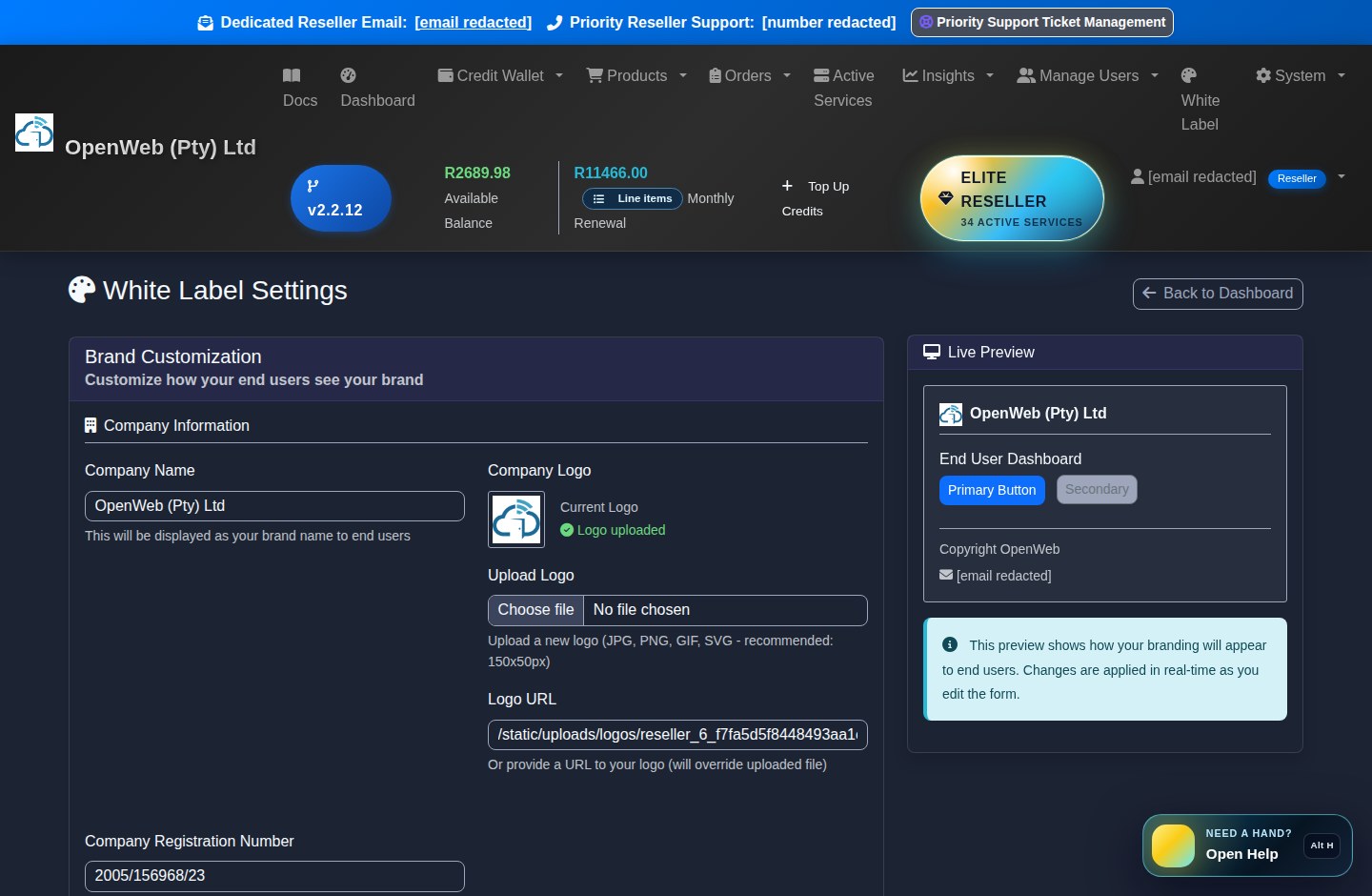
White Label Settings

Captured 4 September 2026
CompanyLogoColoursSupportSubdomain
Current OpenWeb reseller panel screenshot: White Label Settings
Current production view: White Label Settings. Sensitive credentials are not exposed in this guide.

Company identity

Maintain company name, description, website, logo, primary colour, support email, support phone, and supported external support links.

Wizard enforcement

The Wizard guides company, branding, subdomain, and opening-deposit steps. Until completed, a setup-required menu item appears and overdue profiles can be restricted to setup and wallet routes.

fastinternet.cc subdomain

Choose an available reseller subdomain for the branded enduser panel. DNS and SSL are handled by the platform infrastructure; use the exact configured host for enduser access.

Accreditation

Issue an official signed PDF or multilingual tender pack, verify it publicly from its QR code, and renew it during the final 30 days of its 12-month validity. Reseller downloads are limited to two per calendar month.

Accreditation
White Label Settings
Chapter 14
Verified v2.2.12

White-label Enduser Portal

The enduser portal is deliberately smaller than the reseller dashboard and never exposes reseller finance or admin functions.

Exact feature guides

Choose the task you need help with

These guides power the dashboard Helper Widget and link directly to the live reseller workflow.

Enduser Portal

White-label Enduser Portal

Understand the smaller client-safe panel showing assigned services, usage, status and reseller support identity.

Open step-by-step guidance
How to use it

Endusers sign in through the reseller's configured fastinternet.cc host; reseller staff can use safe simulation from Manage Customers to reproduce that view.

Important

Endusers never receive reseller wallet, margin, OWP, customer-list or API-token access.

reseller.openweb.co.za
Customer portal

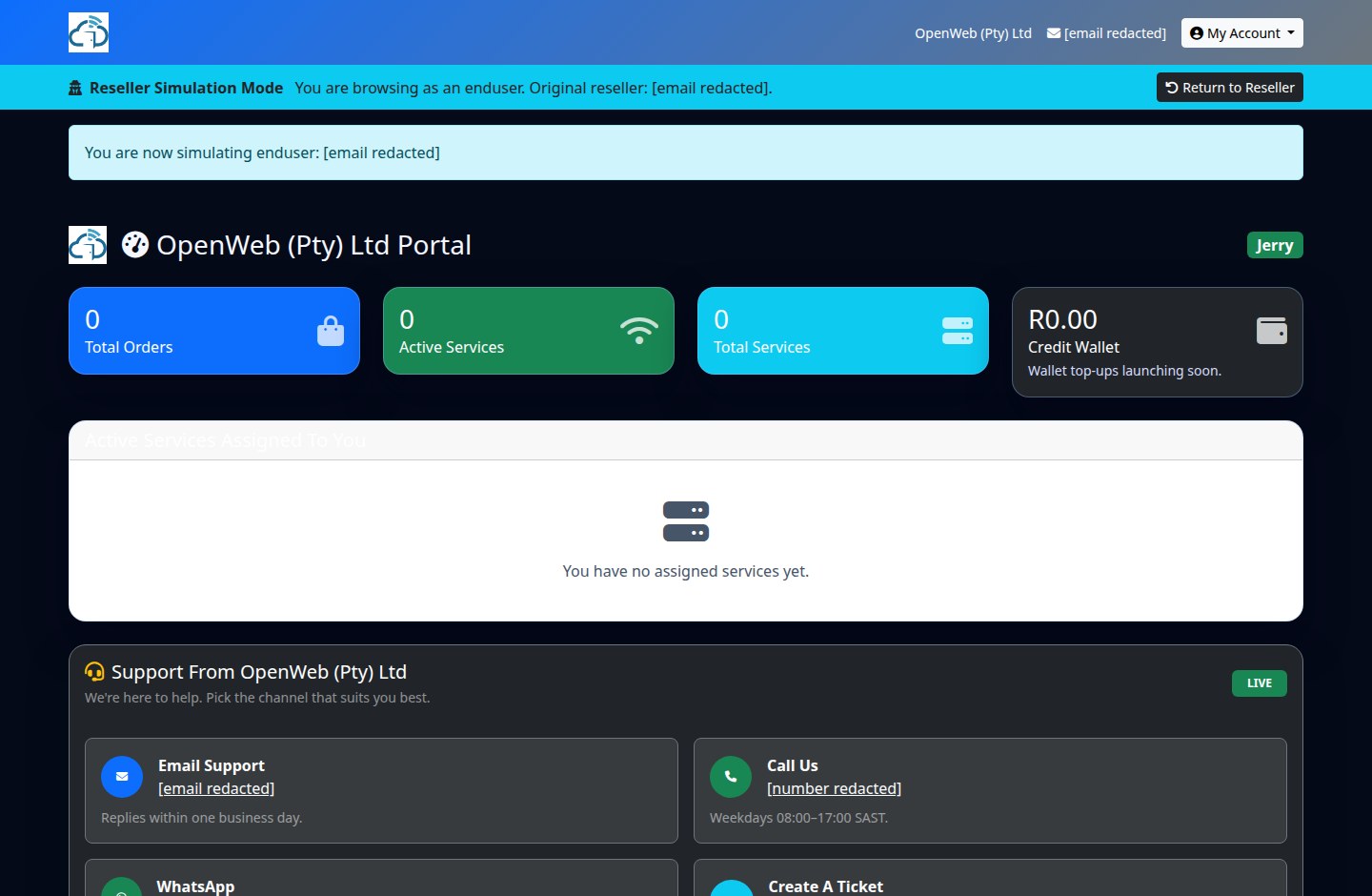
Enduser dashboard

Captured 4 September 2026
Branded LoginServicesStatusUsageSupport
Current OpenWeb reseller panel screenshot: Enduser dashboard
Current production view: Enduser dashboard. Sensitive credentials are not exposed in this guide.
  • The reseller creates the enduser and links services through ordering or customer management.
  • The enduser signs in through the reseller's branded panel and sees the reseller company, colours, support details, and relevant services.
  • Service cards can show status, identifiers, monthly amount, next billing context, usage where supported, and client-safe actions.
  • Reseller staff can use Simulate Enduser from Manage Customers to reproduce the client view, then must return to the reseller session when finished.
  • Endusers do not see the reseller Credit Wallet, OWP wallet, reseller price list, margin data, API tokens, or reseller-wide customer records.
Chapter 15
Verified v2.2.12

OpenWeb Points, Rewards, Voyager, and Campaigns

Earn 1 OWP for every complete R5 added through Credit Wallet Top Up. Packages, renewals, Cloud charges, and PayFast fees do not earn OWP.

Exact feature guides

Choose the task you need help with

These guides power the dashboard Helper Widget and link directly to the live reseller workflow.

Rewards & OWP

Manage Rewards and OWP Wallet

Review OWP balances and redeem currently available rewards through their fulfilment workflow.

Open step-by-step guidance
How to use it

Check available and lifetime points, select a reward, confirm its cost, and follow Pending Orders or Active Services for fulfilment.

Important

YouTube and cash-credit rewards require Admin processing. Rejected cash-credit requests return reserved points; no reward should be fulfilled twice.

Open this feature
Rewards & OWP

30-Day Check-In

Join the active seasonal OWP streak campaign and claim one eligible day at a time.

Open step-by-step guidance
How to use it

Qualify for Day 1 under the live campaign rule, claim daily in South African time, and follow the displayed milestone, wheel and special-reward schedule.

Important

The current campaign requires R100 only when starting or restarting. One missed day can receive the displayed recovery value; two missed days reset the streak.

Open this feature
Rewards & OWP

Check-In Leaderboard

Compare campaign progress while controlling whether the reseller identity appears publicly in the ranking.

Open step-by-step guidance
How to use it

Open the Leaderboard from Orders or Check-In and save the available privacy and reminder preferences.

Important

Leaderboard visibility follows the active campaign and privacy setting; it does not change reward eligibility or audit history.

Open this feature
Rewards & OWP

Raffle tickets

View issued ticket numbers and the campaign action or milestone that created each entry.

Open step-by-step guidance
How to use it

Open Raffle to inspect every ticket and retain the number for the independently administered draw.

Important

Tickets are evidence-linked and cannot be manually duplicated by refreshing or repeating a completed claim.

Open this feature
Rewards & OWP

SAA Voyager Miles

Purchase, convert and review eligible Voyager allocations from the dedicated wallet.

Open step-by-step guidance
How to use it

Choose the available allocation or conversion, verify the recipient details and confirm whether the offering is once-off or recurring.

Important

Recurring Voyager services join monthly renewal billing; once-off transactions do not.

Open this feature
reseller.openweb.co.za
Growth incentives

Rewards and Voyager wallet

Captured 4 September 2026
1 OWP / R5 Top UpVoyagerYouTubeR100 CreditR200 Credit
Current OpenWeb reseller panel screenshot: Rewards and Voyager wallet
Current production view: Rewards and Voyager wallet. Sensitive credentials are not exposed in this guide.

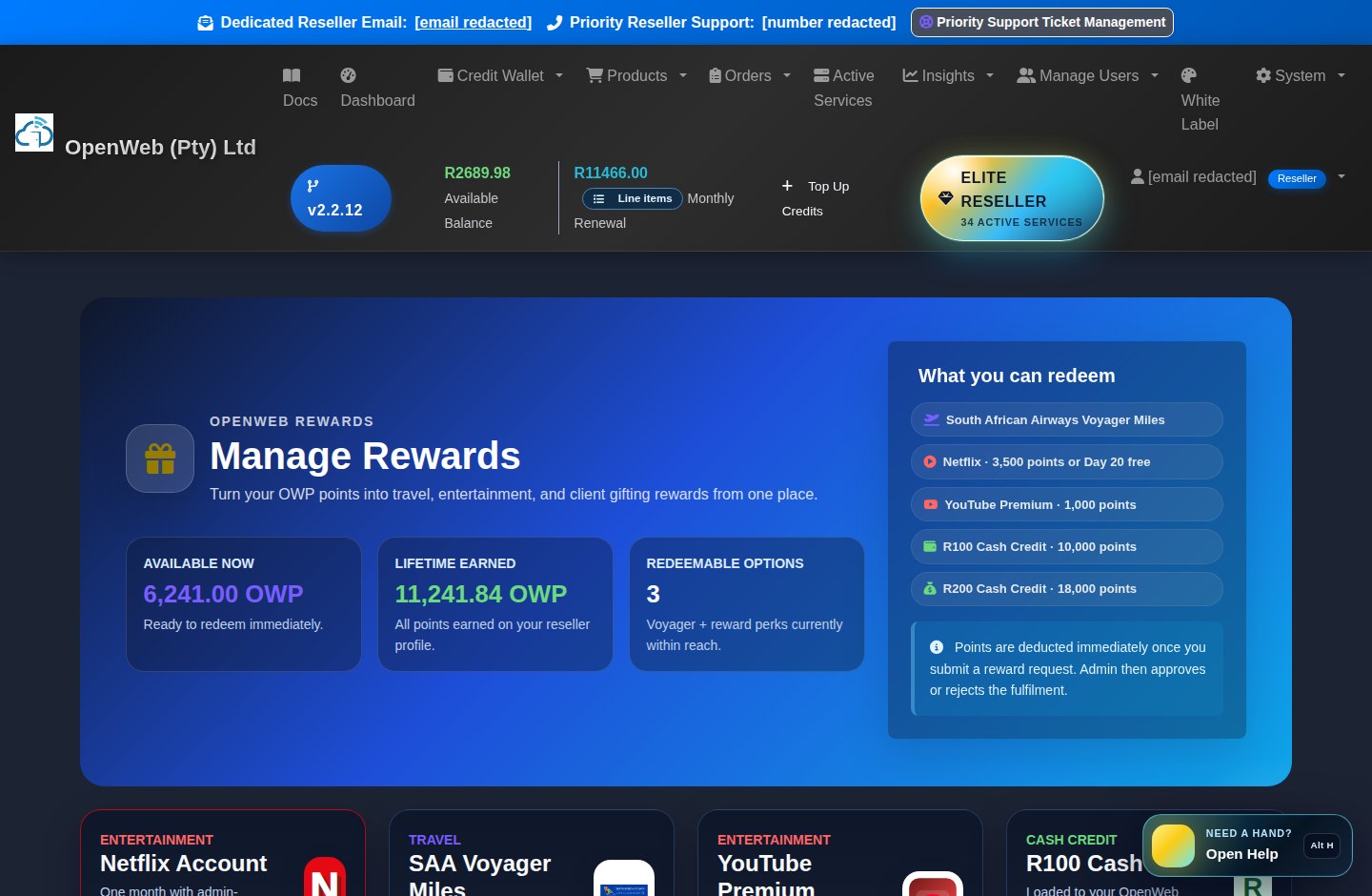
OWP Wallet

Review available balance, lifetime earnings, and the point transaction ledger. Confirmed Credit Wallet top-ups are the standard OWP earning source.

OWP Wallet

YouTube Premium

Redeem 1,000 OWP for the current reward. Admin fulfils the request and provides the Gmail/YouTube access details. The reward remains visible on Active Services for its defined period.

Cash credits

R100 wallet credit costs 10,000 OWP; R200 costs 18,000 OWP. These are not instant: points are reserved, Admin approves or rejects, approved credit enters the wallet, and rejected requests refund the OWP.

SAA Voyager

Use the Voyager wallet for eligible conversion/purchase flows. Recurring monthly Voyager services join monthly renewal billing; once-off activity does not.

Voyager

Spin the Wheel

The wheel appears only during an active campaign and only for its configured audience, such as positive-wallet or Elite resellers. Prize odds and deadline appear in the campaign itself.

OWP waivers

Selected order flows can offer point-based pro-rata or renewal benefits. Treat the live checkout requirement as authoritative because these benefits are product- and campaign-specific.

Current 30-Day Check-In

Start with at least R100 once, then claim 2,000 scheduled OWP across 30 days. Milestone wheels unlock on Days 5, 10 and 30; Day 20 unlocks a one-month Netflix reward. One missed day pays the displayed 50% recovery value; two missed days reset the streak.

Leaderboard and Raffle

Use privacy controls for leaderboard identity and review every evidence-linked raffle ticket number. Check-In reminder preferences and quiet hours do not alter reward eligibility.

Manage Rewards
Chapter 16
Verified v2.2.12

Insights, Communications, and Growth Tools

Use these tools to understand profitability, prevent renewal failure, standardise onboarding, and verify reseller-side conversion events.

Exact feature guides

Choose the task you need help with

These guides power the dashboard Helper Widget and link directly to the live reseller workflow.

Insights

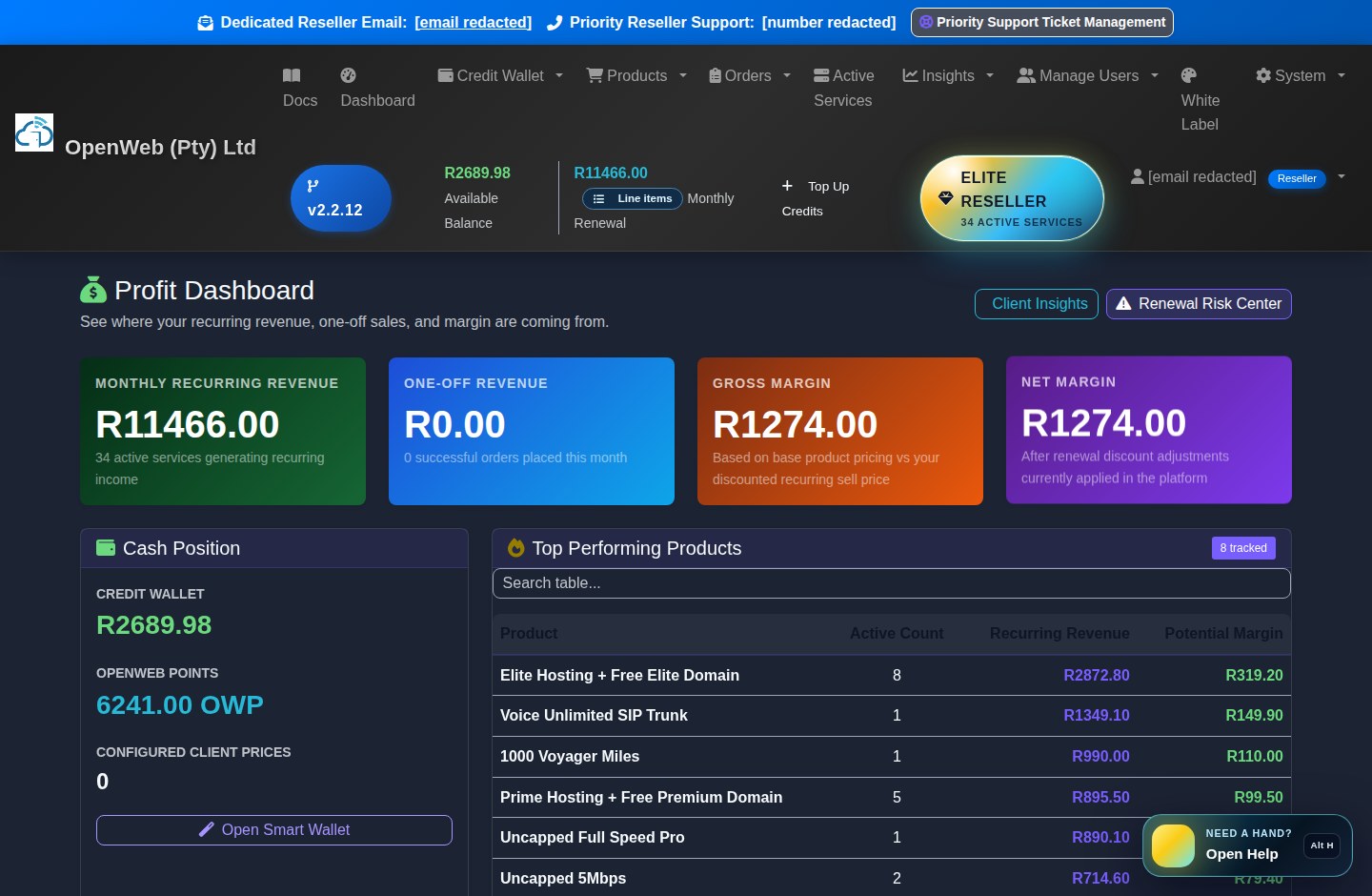
Profit Dashboard

Review sales, reseller cost, enduser price, margin, wallet position and top-performing products.

Open step-by-step guidance
How to use it

Use the period controls and product/customer breakdowns to identify profitable growth and pricing gaps.

Important

Profit views depend on accurate enduser prices and completed transaction data; they do not replace financial statements.

Open this feature
Insights

Renewal Risk Center

Identify customers and services likely to fail upcoming wallet billing or continuity checks.

Open step-by-step guidance
How to use it

Work the shortfall and service-risk list before the payment deadline, using the line-item drilldown and Top Up link where needed.

Important

The risk total must match every other renewal display because all views use the same calculator.

Open this feature
Insights

Client Insights

Review customer-level service, retention and commercial context for targeted follow-up.

Open step-by-step guidance
How to use it

Select a customer, inspect the available signals and save reseller-owned notes or status where offered.

Important

Treat insights as decision support; verify provider and wallet facts in Active Services and Wallet before acting.

Open this feature
Insights

Service Health

Find service exceptions and operational warning signals before escalating support.

Open step-by-step guidance
How to use it

Review the affected service, provider context and suggested next action, then open Active Services for the live control or evidence.

Important

A warning is not automatically a provider outage; confirm status, credentials and sync timestamps first.

Open this feature
Insights

MTN Usage Alerts

Set reseller-specific MTN Mobile thresholds and notification preferences from Masterfile usage data.

Open step-by-step guidance
How to use it

Enable alerts, choose the supported threshold and destination preferences, then save the configuration.

Important

Alerts depend on a valid mobile.is.co.za identity and fresh provider usage snapshots; they are advisory and may lag provider reporting.

Open this feature
Insights

Communications Hub

Review available email, SMS and WhatsApp queue history and use permitted resend actions.

Open step-by-step guidance
How to use it

Filter the communication records, inspect delivery state and resend only when the original message is eligible.

Important

A queued record is not the same as provider delivery. Respect the currently configured channel and do not duplicate successful notices.

Open this feature
Insights

Onboarding Packs

Generate client-ready service instructions as a view, PDF or queued email after provisioning.

Open step-by-step guidance
How to use it

Choose the active service, verify every credential and contact detail, then download or email the pack.

Important

Do not send a pack while credentials or provider state are incomplete; regenerate after material service-detail changes.

Open this feature
Insights

Conversion Audit

Review reseller-visible Google and Meta browser/server event evidence without exposing Admin diagnostics.

Open step-by-step guidance
How to use it

Match the conversion event, route, timestamp and available identifiers to the customer action being tested.

Important

A browser event alone does not prove downstream ad-platform acceptance; use the displayed server/provider evidence where available.

Open this feature
reseller.openweb.co.za
Business intelligence

Insights suite

Captured 4 September 2026
ProfitRenewal RiskClientsHealthCommunicationsConversion
Current OpenWeb reseller panel screenshot: Insights suite
Current production view: Insights suite. Sensitive credentials are not exposed in this guide.
ToolWhat it showsRecommended use
Profit DashboardCash position, sales, wallet, monthly renewal, OWP, and top-performing products.Review margins and sales focus.
Renewal Risk CenterWallet/service conditions likely to cause billing or continuity problems.Work the list before billing deadlines.
Client InsightsCustomer-level profile, retention, service, and commercial context.Plan retention and upsell activity.
Service HealthOperational service health and exception signals.Investigate problems before opening support tickets.
MTN Usage AlertsMasterfile-backed MTN Mobile thresholds and notification preferences.Configure alerts for supported @mobile.is.co.za services.
Communications HubQueued/sent email, WhatsApp, or SMS records available to the reseller.Confirm delivery history and use permitted resend actions.
Onboarding PacksClient-ready service details and PDF/email onboarding material.Send after provisioning and verify credentials first.
Conversion AuditReseller-visible Meta/Google conversion event evidence.Check tracking quality without exposing admin diagnostics.
Chapter 17
Verified v2.2.12

Reseller API Integration and Tokens

API access is scoped to reseller operations. It does not grant Admin panel access.

Exact feature guides

Choose the task you need help with

These guides power the dashboard Helper Widget and link directly to the live reseller workflow.

API Tools

API Integration and Python SDK

Connect a reseller backend through the documented API or download the dependency-free official Python SDK.

Open step-by-step guidance
How to use it

Read the endpoint contract, create a scoped token, test against owned reseller data, and download a fresh SDK archive whenever its version changes.

Important

API access remains reseller-scoped. Never embed bearer tokens in browser code, public repositories, screenshots or support messages.

Open this feature
API Tools

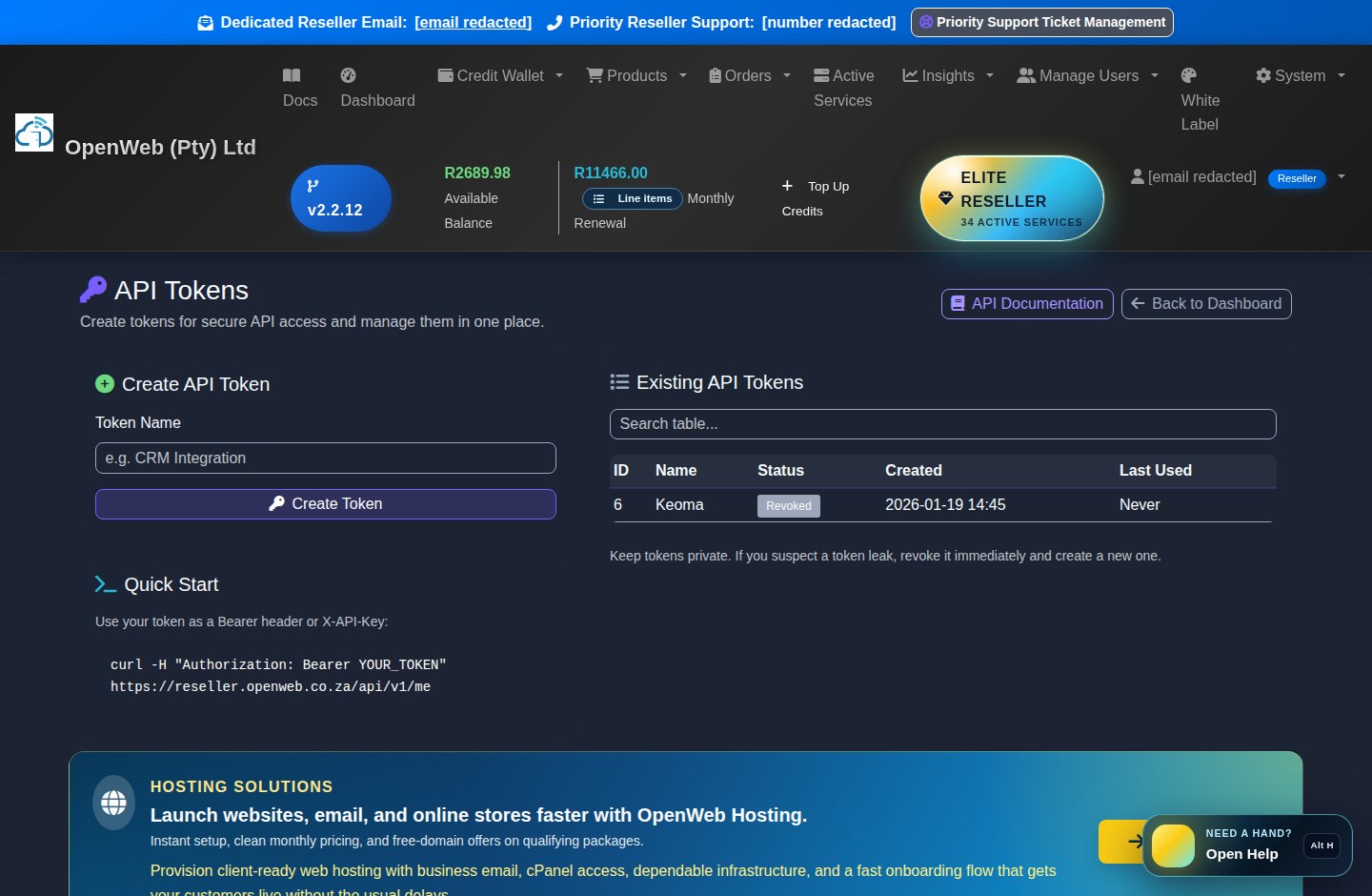
API Tokens

Create, review and revoke named credentials for a known reseller integration.

Open step-by-step guidance
How to use it

Create the token, copy it at issuance, store it in a secret manager and review last-use information regularly.

Important

The full token is not recoverable later. Revoke it immediately when exposed or no longer owned by an active integration.

Open this feature
reseller.openweb.co.za
Developer tools

API tokens and API docs

Captured 4 September 2026
Create TokenOpenAPIBearer AuthRevokeAudit
Current OpenWeb reseller panel screenshot: API tokens and API docs
Current production view: API tokens and API docs. Sensitive credentials are not exposed in this guide.
  • Create a named token only for a known integration and copy it at creation time.
  • Authenticate exactly as described by the API documentation. Never place tokens in browser JavaScript, public repositories, screenshots, or support messages.
  • Use reseller endpoints for permitted customer, service, hosting, invoice, and wallet automation. The API enforces ownership and role boundaries.
  • Revoke a token immediately if it is exposed, retired, or no longer owned by an active integration.
  • Review last-used and token status information before deciding whether an integration is still active.
  • Download the dependency-free official Python SDK for typed helpers covering profiles, wallets, products, transactions, invoices, services, endusers, SIM inventory, hosting, nameservers, and orders.
Chapter 18
Verified v2.2.12

Priority Support, Training, Legal Documents, and Troubleshooting

Gather evidence first, then use the right support route.

Exact feature guides

Choose the task you need help with

These guides power the dashboard Helper Widget and link directly to the live reseller workflow.

Support & Legal

Unlock Discounts

See the reseller's current discount tier and the requirements for the next pricing level.

Open step-by-step guidance
How to use it

Open Unlock Discounts to review the live tier, eligible progress and any available subscription action.

Important

Discounts apply only where the product workflow says they apply; do not discount an already reseller-priced service twice.

Open this feature
Support & Legal

Priority Support

Open and follow support tickets with enough service evidence for a useful response.

Open step-by-step guidance
How to use it

Include the service ID, order number, account/provider identifier, exact error, timestamp and a screenshot with secrets removed.

Important

Never place passwords, API tokens or full card details in tickets or screenshots.

Open this feature
Support & Legal

Video Training Guides

Use available visual walkthroughs alongside the versioned written documentation.

Open step-by-step guidance
How to use it

Choose the relevant reseller training video, then return to the exact page and use the Helper Widget for current written rules.

Important

Older videos can outlive a UI release; the live panel and the current version badge in /docs remain authoritative.

Open this feature
Support & Legal

Documentation and Helper Widget

Search all reseller/enduser workflows or open page-specific guidance from the bottom-right helper.

Open step-by-step guidance
How to use it

Press Alt+H or select Help, search by task or product, and open a result; guidance opens in a new browser tab at the exact feature explanation.

Important

The helper never submits forms or changes data. Use the version badge and reviewed date to confirm the guidance matches the live release.

Open this feature
reseller.openweb.co.za
Operational support

Support and legal centre

Captured 4 September 2026
TicketsService EvidenceVideosRefund PolicyLegal
Current OpenWeb reseller panel screenshot: Support and legal centre
Current production view: Support and legal centre. Sensitive credentials are not exposed in this guide.

Priority Support Ticket Management

Create and follow tickets in the panel. Include service ID, order number, provider/account identifier, exact error, timestamp, and a screenshot without passwords.

Priority Support

Video Training Guides

Use the reseller training library for available visual walkthroughs. The written `/docs` guide remains the primary current reference.

Videos

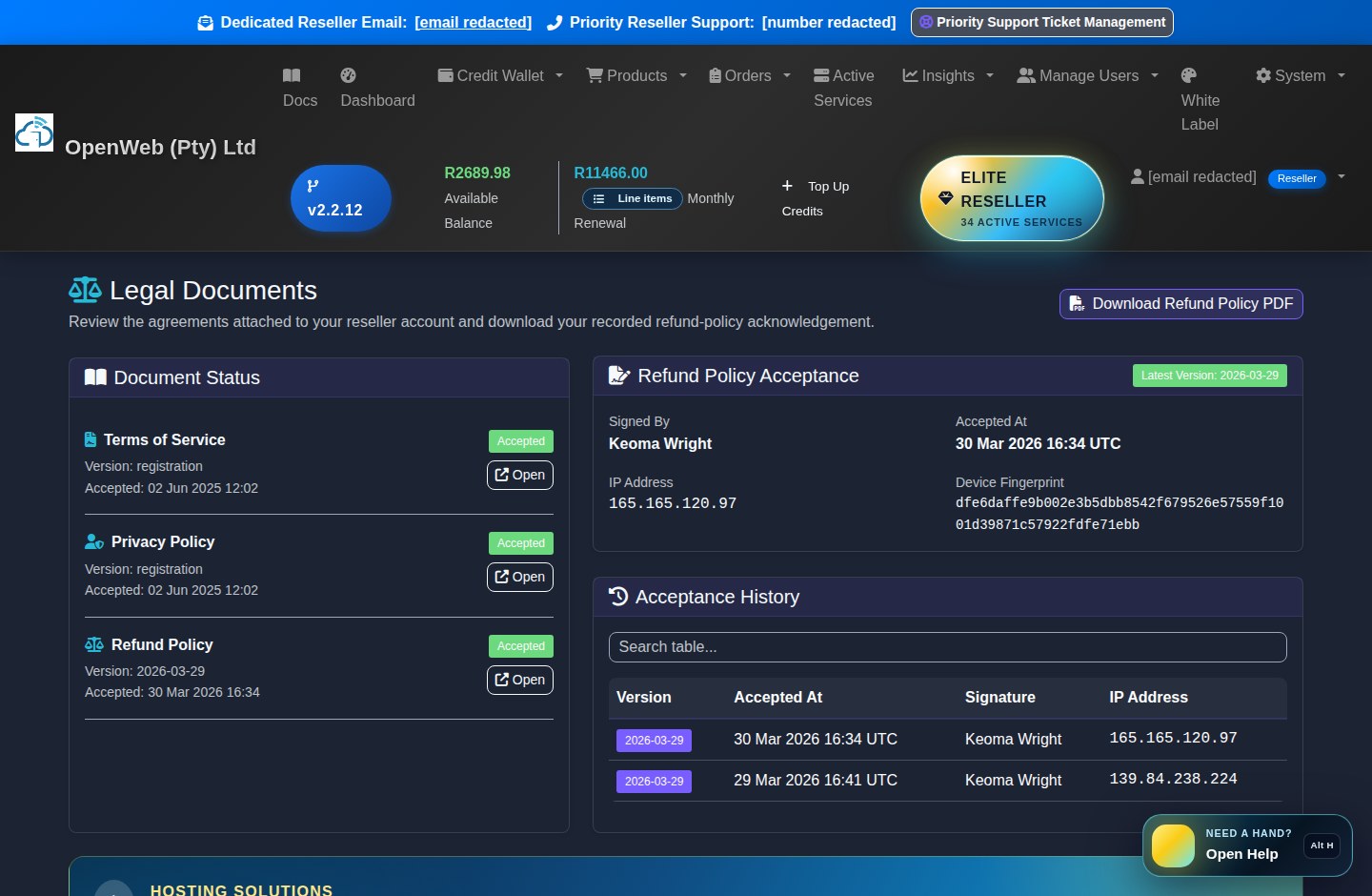
Legal Documents

Review the current Refund Policy, signature status, historical acknowledgements, and downloadable agreement. An unsigned or outdated policy can block most reseller routes.

Legal Documents

Profile and security

Keep reseller contact data current, use a unique password, do not share owner credentials, and use Panel Admin accounts for staff.

Fast troubleshooting checklist

  • Order blocked: verify wallet, product stock, customer, SIM mapping, address, signatures/disclaimers, and every required field.
  • PayFast discrepancy: open Payment Trace and inspect the transaction before retrying.
  • Service missing: clear Active Services search/family/problem filters and search the full service ID or username.
  • Cloud still provisioning: inspect the live event stream and provider state; wait for active before using Toolbox actions.
  • Cloud console blank: refresh service state, confirm the instance is active, then retry the provider-specific Console action.
  • Hosting/DNS issue: compare provider and local nameservers, run DNS health/propagation checks, and inspect pending confirmation or glue warnings.
  • Usage missing: confirm the product supports provider usage/session lookup and use an explicit refresh rather than repeated searching.
  • Enduser view wrong: verify white-label settings, the enduser's reseller ownership, assigned services, and the intended fastinternet.cc host.
Chapter 19
Verified v2.2.12

Glossary and Non-negotiable Operating Rules

Terms that reseller owners and staff should use consistently.

Exact feature guides

Choose the task you need help with

These guides power the dashboard Helper Widget and link directly to the live reseller workflow.

Glossary

Operating rules and glossary

Use consistent service, wallet, SIM, billing and provider terminology across the reseller team.

Open step-by-step guidance
How to use it

Check the glossary when a status, amount or service family could be interpreted in more than one way.

Important

Live checkout and provider state remain authoritative for variable prices, stock and campaigns; fixed integrity rules still apply.

Open this feature
TermMeaningOperational rule
ResellerThe Certified OpenWeb business profile selling services to endusers.Keep wallet, customer, company, and support details accurate.
EnduserThe reseller's customer and service recipient.Endusers use the branded portal and never receive reseller financial/API access.
Credit WalletPrepaid reseller balance used for orders and billing.Billing may take it negative; recovery requires at least R0.00.
Renewal AmountAuthoritative recurring amount calculated from all billable active, suspended, and period-eligible scheduled services, including recurring add-ons and annual domains only when due.The header, dashboard, finance tools, and GET /api/v1/wallet use this same calculator; service fees already contain reseller pricing and are not discounted twice.
Pro-rataPartial-period amount due now.The live checkout calculation is authoritative.
Blank SIMUnassigned network inventory.Must not be linked to an order/service and has R0 monthly holding cost.
MTN MobileGSM/mobile data service whose usage and connection identity are read from Masterfile.Uses @mobile.is.co.za; Usage Stats shows total GB, active connections, current session IP, and authoritative SIM serial. It is not an MTN Fixed SIM service.
MTN Fixed 5GLocation-locked fixed-wireless service.Uses ws.dd.fwa and requires approved fixed hardware/location compliance.
Active ServiceA provisioned or managed service record.Active recurring services join renewal calculations.
Cloud DestroyImmediate provider deletion.Irreversible, all data lost, and no monthly-plan refund.
Static IPDedicated service IP or cloud primary IP field.New static-IP add-on sales are unavailable; existing assignments remain.
OWPOpenWeb Points rewards currency.Earn 1 per R5 added through Credit Wallet Top Up; redemptions have their own requirements.
White LabelReseller-branded enduser experience.Keep branding, support, and subdomain details current.
Pending OrderA request awaiting payment, review, or fulfilment.Do not duplicate it without checking Order History first.
Last reviewed: 4 September 2026 against the production reseller dashboard. If the live checkout or service card conflicts with an old email or screenshot, use the live panel and contact reseller support for confirmation.
Accuracy reporting

Is this guide accurate for the live panel?

Confirm a workflow or report exactly what needs correction. Every report is versioned and appears in the Admin documentation review queue.